
How to Connect Notion to ChatGPT (6 Methods + Trade-Offs)


Sync Notion to ChatGPT with Context Link
ChatGPT + Notion via Automation
Use automation platforms like Zapier or Make to connect Notion content to ChatGPT workflows.
May require ChatGPT Plus for best experience
You're probably copy-pasting the same Notion pages into ChatGPT every week. There's a better way.
Notion has 100 million users worldwide. ChatGPT hit 180 million weekly actives in 2025. Yet they don't talk to each other natively. If you're manually copying meeting notes, product specs, and project briefs from Notion into ChatGPT, you're wasting time and hitting context window limits fast.
I built Context Link after spending six months copy-pasting the same Notion pages into ChatGPT. I wanted my business to be a living thing I could talk to from inside the AI tools I already used: connect Notion once, ask anything from ChatGPT, and have the same setup keep working when I switched to Claude or Copilot.
In this guide, I'll show you six ways to connect Notion to ChatGPT (and Claude, Copilot, and Gemini), from DIY browser extensions to fully automated context links and seamless inline integration. By the end, you'll know which method fits your workflow and how to set it up today.
Why Connect Notion to ChatGPT? (The Context Problem)
Before we dive into methods, let's clarify why this matters and what "connection" actually means.
The Manual Copy-Paste Trap
Most knowledge workers keep their best thinking in Notion, product docs, meeting notes, research, project briefs, strategy decks. When you want ChatGPT to help draft content, plan projects, or answer questions, you need to give it that context.
Photo by Julien Doclot on Unsplash

The problem: ChatGPT doesn't automatically know what's in your Notion workspace. So you:
- Open Notion
- Find the right page or database
- Copy the content
- Paste it into ChatGPT
- Ask your question
- Repeat tomorrow for the same pages
McKinsey reports that switching tools burns 20% of a knowledge worker's week. When you're context-switching between Notion and ChatGPT multiple times per day, that adds up fast.
Plus, ChatGPT has context window limits. You can't paste your entire Notion workspace into every conversation. Even GPT-4's 128k token limit fills up quickly with long-form docs, databases, and meeting transcripts.
What "Connection" Actually Means
When people say they want to "connect Notion to ChatGPT," they usually mean one of two things:
Read Notion content into ChatGPT prompts (Most common)
Give ChatGPT access to your Notion pages as input, so it can reference your docs, notes, and databases when answering questions or helping you write.
Write ChatGPT outputs back to Notion (Less common)
Automatically save ChatGPT responses as new Notion pages or database entries, creating a two-way sync for workflows like meeting summaries or task generation.
Most use cases focus on the first option, giving ChatGPT context from Notion. That's where semantic search and model-agnostic solutions (like Context Link) shine, because you're not writing back to Notion, you're just pulling the right snippets into your AI conversations. You can also connect Google Drive to ChatGPT to combine document context with your Notion content.
Method 1: Automation Platforms (Zapier, Make, Gumloop)
Use third-party automation tools to bridge the Notion API and OpenAI API, creating workflows that trigger on Notion events and send data to ChatGPT.
How It Works
Automation platforms like Zapier, Make, and Gumloop act as a middle layer between Notion and ChatGPT. You build workflows (called "Zaps" or automations) with triggers and actions:
Example workflow:
- Trigger: New page added to Notion database
- Action 1: Send page content to ChatGPT API
- Action 2: Create new Notion page with ChatGPT's response
The platform handles authentication, API calls, and data flow between the two tools. You don't need to write code, but you do need to configure workflows and manage API keys.
Step-by-Step Setup (Zapier Example)
Step 1: Create Zapier Account
Sign up for a free or paid Zapier account at zapier.com. Free plans support basic workflows; paid plans ($20-200/month) unlock more triggers and actions.
Step 2: Connect Notion Integration
- Click "Create Zap" in the dashboard
- Select Notion as your trigger app
- Choose a trigger event (e. g., "New Database Item")
- Authorize Zapier to access your Notion workspace
- Select which database or page to monitor
Step 3: Connect OpenAI Integration
- Add an action step
- Select "OpenAI (ChatGPT)" as the action app
- Enter your OpenAI API key (requires ChatGPT Plus or API account)
- Select "Send Prompt" as the action type
- Define your prompt template (e. g., "Summarize this meeting note: [Notion page content]")
Step 4: Build Workflow Logic
- Map Notion fields to ChatGPT prompts (e. g., pull page title, body text, database properties)
- Add additional actions if needed (e. g., save ChatGPT response back to Notion)
- Test the workflow with sample data
Step 5: Activate and Monitor
Turn on the Zap and let it run automatically. Monitor for errors or rate limits, especially if you're processing many Notion pages.
Photo by Mika Baumeister on Unsplash
Trade-Offs
✅ Pros:
- Automates repetitive tasks: Once configured, workflows run without manual intervention
- Bidirectional sync: Can read from Notion and write ChatGPT outputs back to Notion
- No coding required: Visual workflow builder, no need to touch APIs directly
- Flexible logic: Combine with other tools (Slack, email, Google Sheets) for complex workflows
❌ Cons:
- Monthly cost: Zapier costs $20-200/month depending on workflows and steps; Make and Gumloop have similar pricing
- OpenAI API costs: You pay OpenAI separately for every ChatGPT call (typically $0.002-0.03 per 1,000 tokens)
- Ongoing maintenance: Workflows break when APIs change or Notion structure updates
- Single-model only: You're locked into ChatGPT; switching to Claude or Copilot means rebuilding workflows
- Technical setup: API key management, error handling, and debugging require some technical comfort
Best For
- Teams with recurring automation needs (e. g., daily meeting notes → Notion task generation)
- Users comfortable managing multiple platform subscriptions and API keys
- Workflows that require write-back to Notion (not just reading context)
- Organizations with technical leads who can maintain automations
Real-world example: A product team uses Zapier to monitor their "User Feedback" Notion database. When new feedback is added, ChatGPT automatically categorizes it (bug, feature request, question) and adds tags to the database.
Method 2: Browser Extensions (ChatShelf, Chat to Notion)
One-click browser extensions save ChatGPT conversations to Notion pages, but they don't give ChatGPT access to your Notion content as input.
How It Works
Extensions like ChatShelf and Chat to Notion add a button to your ChatGPT interface. After a conversation, you click the button and the extension saves the entire chat thread as a new page in your designated Notion database.
Important distinction: This is a one-way save (ChatGPT → Notion). It doesn't give ChatGPT context from your existing Notion pages. If you want ChatGPT to reference your Notion docs when answering questions, browser extensions won't help.
Quick Setup
Step 1: Install Extension
Install ChatShelf or Chat to Notion from the Chrome Web Store.
Step 2: Authorize Notion Access
Click the extension icon and authorize it to connect to your Notion workspace. Grant permissions to create pages.
Step 3: Configure Save Location
Choose which Notion database should store saved ChatGPT conversations. Set default tags or properties if needed.
Step 4: Use After Conversations
After chatting with ChatGPT, click the extension button to save the thread to Notion. The extension captures the full conversation, including your prompts and ChatGPT's responses.

Trade-Offs
✅ Pros:
- Simple setup: Install, authorize, and start saving in under 5 minutes
- Low/no cost: Most extensions are free or $5/month
- No API management: No need for OpenAI API keys or Zapier workflows
- Fast archiving: Save entire conversations with one click
❌ Cons:
- One-way only: Saves ChatGPT outputs to Notion, but doesn't give ChatGPT context from Notion
- Manual action required: You have to click the button after every conversation
- No semantic search: Saved conversations are static pages; you can't dynamically query Notion content from ChatGPT
- Limited to archiving: Best for record-keeping, not for giving ChatGPT context about your work
Best For
- Users who want to archive ChatGPT conversations in Notion for future reference
- Teams documenting AI-assisted work for compliance or review
- Simple "save to Notion" functionality without complex workflows
- Not suitable if your goal is to give ChatGPT access to your Notion content as input
What this method doesn't do: If you store product specs in Notion and want ChatGPT to reference them when drafting marketing copy, browser extensions won't help. They only save ChatGPT outputs, they don't read Notion inputs.
Method 3: Notion MCP (Model Context Protocol)
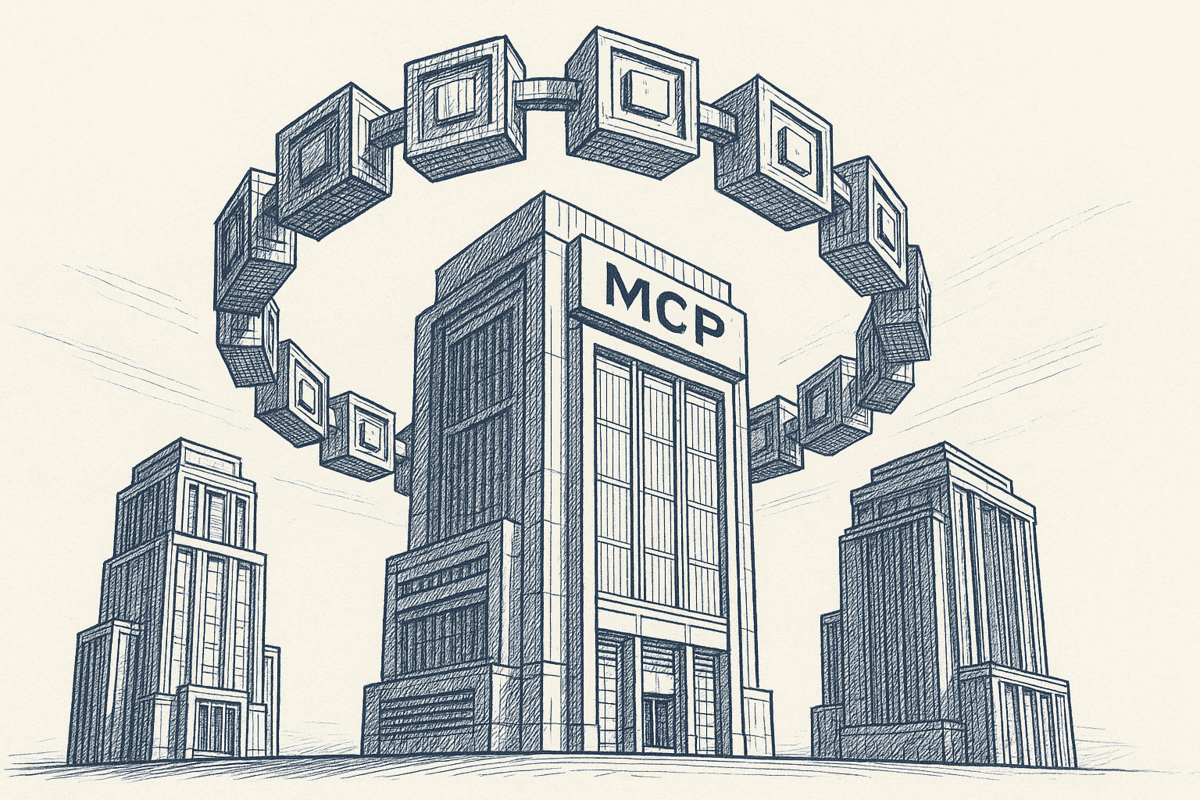
Notion's Model Context Protocol is an official integration layer that lets AI assistants (ChatGPT Pro, Claude, Cursor) access your Notion workspace in real-time.
What Is MCP?
MCP (Model Context Protocol) is Notion's new standard for connecting AI tools directly to Notion. Instead of using third-party automation platforms, MCP-enabled AI tools can read and write Notion pages natively through an official protocol.
Think of it as Notion's answer to the "connect my workspace to AI" problem. When configured, MCP allows ChatGPT Pro, Claude Pro, or other supported tools to query your Notion workspace, retrieve pages, and even create or update content, all within the AI chat interface.
Requirements & Limitations
What you need:
- ChatGPT Pro subscription ($20/month) or Claude Pro subscription
- Notion workspace (free or paid plan works)
- Technical setup: MCP configuration requires installing and configuring protocol files
Current limitations:
- ChatGPT Pro only (free ChatGPT doesn't support MCP)
- Limited AI tool support (ChatGPT Pro, Claude Pro, Cursor; not widely adopted yet)
- Setup requires technical configuration (editing JSON files, setting environment variables)
- No semantic search layer (MCP returns full page content, not targeted snippets)
How to Set Up Notion MCP
Step 1: Install MCP Client
Download and install the MCP client for your operating system. Follow Notion's official documentation for installation instructions.
Step 2: Configure Notion Connection
Create a Notion integration token in your workspace settings. Add the token to your MCP configuration file, specifying which pages and databases the AI can access.
Step 3: Connect AI Tool
In ChatGPT Pro or Claude Pro, enable the Notion MCP integration. Authenticate with your Notion account and grant permissions.
Step 4: Start Querying
Once connected, you can ask ChatGPT or Claude questions like "What did we discuss in last week's product meeting?" and the AI will query your Notion workspace to find relevant pages.
Photo by shahawb MaghamiRad on Unsplash
Trade-Offs
✅ Pros:
- Official support: Built by Notion, with ongoing maintenance and updates
- Real-time access: AI tools can read the latest version of your Notion pages
- Bidirectional: Can read from and write to Notion (create pages, update databases)
- Works with multiple AIs: If they support MCP (ChatGPT Pro, Claude Pro)
❌ Cons:
- Requires paid subscriptions: ChatGPT Pro ($20/month) or Claude Pro ($20/month) on top of Notion
- Technical setup: Not a point-and-click solution; requires JSON configuration and token management
- Limited AI tool support: Only works with MCP-compatible clients (not all AI tools support it yet)
- No semantic search layer: Returns full page content, which can overwhelm context windows
Best For
- ChatGPT Pro or Claude Pro users already paying for subscriptions
- Developers or technical teams comfortable with protocol configuration
- Users needing real-time bidirectional sync (read and write)
- Organizations willing to pay for official integrations
Real-world example: A founder using ChatGPT Pro asks, "Based on our Q4 roadmap in Notion, what are the top 3 priorities?" ChatGPT uses MCP to query the Notion workspace, finds the roadmap page, and returns a prioritized list.
Method 4: ChatGPT App Connector for Context Link
The newest way to access your Notion workspace in ChatGPT is through the official Context Link ChatGPT app, which lets you reference your Notion pages inline using natural language without leaving ChatGPT.
What It Is
The Context Link ChatGPT app integrates directly into ChatGPT's interface, allowing you to ask ChatGPT to search your connected Notion workspace (and other sources like Google Docs) dynamically. Instead of manually pasting context links, you can simply ask "get context on product roadmap" and ChatGPT will search your connected Notion pages and retrieve relevant snippets.
This is different from the native MCP approach because it uses semantic search across all your connected sources, not just full-page access.
How to Set It Up
Step 1: Add the Context Link app
The fastest path is to add Context Link from the ChatGPT app store — it's an official, published app, so there's nothing to configure manually. (You can also add it by hand in ChatGPT settings: create a new app connection with Name "Context Link", URL https://www.context-link.ai/mcp, and OAuth authentication.)
Step 2: Activate the App
From ChatGPT's apps menu, activate the Context Link app.
Step 3: Authenticate via Magic Link
You'll receive a magic link to authenticate and connect your Context Link account. This links your existing Context Link sources (Notion, Google Docs, websites, etc.) to ChatGPT.
Step 4: Connect Notion in Context Link
If you haven't already, log into Context Link and connect your Notion workspace. Select which pages and databases to sync.
Step 5: Start Querying
Back in ChatGPT, you can now ask questions like:
- "Get context on Q4 product roadmap"
- "Search my Notion for customer feedback themes"
- "Find context about our pricing strategy"
ChatGPT will automatically search your connected Notion pages and use the relevant snippets to answer.
Or for a direct answer, ask Context Link a question outright — "ask Context Link: what's on our Q4 product roadmap?" — and get back one short paragraph with numbered citations. The Ask Question skill is a Pro feature and counts toward your monthly LLM allowance.
For complete setup instructions, see Context Link's ChatGPT connector guide.
Trade-Offs
✅ Pros:
- Seamless inline experience: No need to leave ChatGPT or manually paste links
- Natural language queries: Just ask ChatGPT to "get context on X"
- Semantic search: Finds relevant snippets across all your Notion pages
- Multi-source support: Works with Notion, Google Docs, OneDrive, websites, and other Context Link sources
- Always updated: Automatically reflects changes in your Notion workspace
- No manual link pasting: ChatGPT handles the context retrieval automatically
❌ Cons:
- Requires ChatGPT Plus: Not available on free tier
- Requires Context Link subscription: Two paid services needed
- ChatGPT-only: Doesn't work with Claude, Copilot, or other models
- Additional authentication step: Beyond standard ChatGPT login
Best For
- ChatGPT power users who want the most seamless experience
- Teams that want semantic search across multiple sources (Notion + Google Docs + OneDrive + websites)
- Users who prefer natural language queries over manual link pasting
- Organizations already using or planning to use Context Link
Real-world example: A product manager asks ChatGPT "get context on user feedback from last quarter" and ChatGPT automatically searches the team's Notion workspace, pulls relevant meeting notes and feedback databases, and summarizes key themes without the PM needing to find or paste any links.
Method 5: Zapier Automation with Context Link
If you want to build automated workflows where Context Link generates context from your Notion workspace and connects it to thousands of other apps, Zapier integration is the solution.
What It Is
Context Link's Zapier integration allows you to generate markdown-formatted context from your Notion pages (and other connected sources) and use it in automated workflows. This is different from Method 4 because instead of querying context within ChatGPT, you're building automated workflows that generate and route context to email, databases, Slack, Airtable, and 8,000+ other apps.
The core action is "Generate Context," where you input a topic or keyword and Context Link outputs relevant markdown-formatted information from your connected Notion workspace.
How to Set It Up
Step 1: Connect Context Link to Zapier
Go to Zapier's Context Link integration page and connect your Context Link account to Zapier.
Step 2: Choose a Trigger App
Select a trigger that starts your workflow. Popular options:
- New page added to Notion database
- Scheduled time (daily, weekly)
- New email received
- New row in Google Sheets
- Webhook trigger
Step 3: Add Context Link "Generate Context" Action
Add the Context Link action "Generate Context" to your workflow. Configure it with a topic or keyword that describes what context you need from your Notion workspace.
For example:
- Topic: "customer feedback themes"
- Topic: "Q4 product roadmap"
- Topic: "team meeting action items"
Step 4: Add Output Actions
Add steps to do something with the generated context:
- Email by Zapier: Send the context summary via email
- Airtable: Store context in a database table
- Slack: Post context to a team channel
- Google Sheets: Add context to a spreadsheet
- ChatGPT (OpenAI): Send context to ChatGPT API for further processing
Step 5: Test and Activate
Test your workflow with sample data, then turn it on to run automatically.
Trade-Offs
✅ Pros:
- Fully automated: No manual prompting required once set up
- Works with 8,000+ apps: Connect Notion context to any Zapier-supported tool
- Semantic search included: Context Link finds relevant Notion snippets automatically
- Great for recurring tasks: Daily summaries, weekly reports, automated notifications
- SOC 2 and GDPR compliant: Enterprise-ready security
- Model-agnostic: Can route context to ChatGPT, Claude, or other tools via API
❌ Cons:
- Requires two subscriptions: Zapier and Context Link
- Currently in beta: Some features may evolve
- Steeper learning curve: More complex than direct ChatGPT use
- Not for real-time conversations: Best for scheduled or triggered workflows
- Multiple dependencies: Relies on Zapier, Context Link, and target app uptime
Best For
- Teams wanting fully automated workflows that run on schedules or triggers
- Organizations needing to route Notion context to tools beyond just AI chats (Slack, Airtable, email)
- Recurring tasks like weekly summaries, daily briefings, or automated reports
- Users comfortable with no-code automation platforms
- Teams that want semantic search without manual querying
Real-world example: A customer success team sets up a daily Zap that generates context about customer feedback from their Notion database, then posts a summary to their Slack channel every morning. The team gets insights without manually searching Notion or prompting ChatGPT.
Method 6: Context Link (Model-Agnostic Semantic Search)
Context Link gives you a personal URL (like yourname.context-link.ai/notion-docs) that you paste into ChatGPT, Claude, Copilot, or any AI chat. It runs semantic search on your Notion workspace and returns just the right snippets in markdown.
How Context Link Differs
Unlike the previous methods, Context Link isn't about automation or browser extensions. It's a context layer that sits between your Notion workspace and any AI tool you use.
Key differences:
Semantic search, not full-page upload
Most methods dump entire Notion pages into ChatGPT, filling context windows with irrelevant details. Context Link indexes your Notion content semantically, then returns only the most relevant snippets for your query.
Model-agnostic, not ChatGPT-only
Automation platforms lock you into ChatGPT API. MCP works with ChatGPT Pro and Claude Pro. Context Link works with every AI tool that accepts URLs: ChatGPT, Claude, Copilot, Gemini, Grok, Notion AI, and custom APIs.
No automation platform required
Zapier costs $20-200/month and requires ongoing workflow maintenance. Context Link connects Notion once and gives you a reusable URL, no Zapier, no Make, no workflow builder.
Setup Process
Step 1: Sign Up for Context Link
Go to context-link.ai and create an account. You'll get a personal subdomain (e. g., yourname.context-link.ai).
Step 2: Connect Notion Workspace
In the Context Link dashboard, click "Add Source" and select "Notion." Authenticate with your Notion account via OAuth. Grant Context Link read-only access to your workspace.
Step 3: Select Pages and Databases
Choose which Notion pages, databases, and sections to include. You can connect your entire workspace or scope it to specific folders (e. g., "Product Docs," "Meeting Notes").
Step 4: Get Your Context Link
Your personal context link is yourname.context-link.ai/. You can add topic-based searches to the end (e. g., /product-docs, /meeting-notes) to filter results.
Step 5: Use with Any AI Tool
Paste your context link into ChatGPT, Claude, or Copilot before your prompt:
Please visit this link for context: yourname.context-link.ai/meeting-notes

Based on my recent meeting notes, what are the top 3 action items from last week's product sync?
The AI visits your context link, Context Link runs semantic search on your Notion workspace, returns relevant snippets in markdown, and ChatGPT uses those snippets to answer your question.
How Semantic Search Works
Here's what happens behind the scenes when you share your context link:
- Indexing: Context Link breaks your Notion pages into chunks and creates semantic embeddings (vector representations of meaning).
- Query: When an AI tool visits your link with a query, Context Link runs semantic search to find chunks that match the query's meaning (not just keywords).
- Ranking: Results are ranked by relevance, and the top snippets are selected.
- Formatting: Snippets are returned as clean markdown, optimized for AI consumption.
- Context: The AI receives focused, relevant content instead of entire pages or full databases.
Why this matters: Instead of pasting 10 Notion pages into ChatGPT (5,000+ words), you get 500 words of the most relevant snippets. The AI gets better context, and you don't waste tokens on irrelevant content.

Trade-Offs
✅ Pros:
- Model-agnostic: One setup works with ChatGPT, Claude, Copilot, Gemini, Grok, Notion AI, and custom tools
- Semantic search: Returns only relevant snippets, not full pages or all the metadata
- No coding required: Simple web interface for connecting sources and creating searches
- Reusable: The same URL works for every conversation, every day
- No automation platform: No Zapier subscription, no workflow maintenance
- No API key management: Context Link handles all API calls; you just paste a URL
- Dynamic searches: Search any phrase you want; Context Link understands meaning and returns the best snippets
❌ Cons:
- Paid service: Context Link requires a subscription (not free like copy-paste or URL sharing)
- Read-only: Doesn't write back to Notion (only reads context)
- External dependency: You're relying on Context Link's infrastructure
- Requires pasting link: You need to paste your context link before prompts (not automatic like MCP)
Best For
- Users who switch between multiple AI models (ChatGPT, Claude, Copilot, Gemini)
- Teams wanting controlled, scoped access to Notion content
- Marketers, founders, and content teams using AI daily
- Anyone tired of rebuilding integrations or copy-pasting manually
- Users who value semantic search over full-page uploads
- Teams that want to connect multiple sources (Notion + Google Docs + OneDrive + websites) with one reusable link
Real-world example: A marketing team stores brand guidelines, past campaigns, and product specs in Notion. They paste their Context Link into Claude and ask, "Based on our brand voice and previous campaigns, draft a LinkedIn post for our new product launch." Claude gets relevant snippets from across their Notion workspace, without the team manually selecting which pages to include.

Comparing Methods: Which Way to Connect Notion to ChatGPT Fits You?
Now that you've seen all six methods to connect Notion to ChatGPT, here's a side-by-side comparison to help you decide.
Comparison Table
| Method | Cost | Setup Time | Bidirectional? | Multi-Model? | Semantic Search? | Best Use Case |
|---|---|---|---|---|---|---|
| Automation Platforms | $20-200/mo + API | 30-60 min | ✅ Yes | ❌ No (ChatGPT only) | ❌ No | Recurring automation workflows |
| Browser Extensions | Free-$5/mo | 5 min | ❌ No (save only) | N/A | ❌ No | Archive ChatGPT conversations |
| Notion MCP | $20/mo (ChatGPT Pro) | 15-30 min | ✅ Yes | ⚠️ Limited | ❌ No | Real-time read/write for Pro users |
| ChatGPT App Connector | ChatGPT Plus + Context Link | 10 min | ❌ No (read only) | ❌ No (ChatGPT only) | ✅ Yes | Seamless inline ChatGPT queries |
| Zapier + Context Link | Zapier + Context Link | 20-30 min | ❌ No (read only) | ✅ Yes (via workflows) | ✅ Yes | Automated context distribution |
| Context Link URLs | Subscription | 10 min | ❌ No (read only) | ✅ Yes | ✅ Yes | Model-agnostic context layer |
Decision Framework
Use this decision tree to pick the right method:
Need to write back to Notion automatically?
→ Automation platforms (Zapier, Make) or Notion MCP
Want the most seamless ChatGPT-only experience?
→ ChatGPT App Connector (inline natural language queries)
Want to switch between AI models (ChatGPT, Claude, Copilot, Gemini)?
→ Context Link URLs (model-agnostic) or learn how to connect your website to Claude alongside Notion
Just archiving ChatGPT conversations for future reference?
→ Browser extension (ChatShelf, Chat to Notion)
Need automated workflows that route context to multiple apps (Slack, email, Airtable)?
→ Zapier + Context Link
Need recurring automation (e. g., new Notion page → ChatGPT summary → email)?
→ Automation platforms (Zapier, Make) or Zapier + Context Link
Want semantic search (relevant snippets, not full pages)?
→ ChatGPT App Connector, Zapier + Context Link, or Context Link URLs
Already paying for ChatGPT Pro?
→ Consider Notion MCP if you need real-time bidirectional sync, or ChatGPT App Connector for semantic search
Just testing this workflow occasionally?
→ Start with copy-paste or browser extension; upgrade later
Photo by Isaac Smith on Unsplash

How to Use Notion With ChatGPT: Common Workflows
Here's how different teams connect Notion to ChatGPT and which methods work best for each scenario.
Meeting Notes & Action Items
Scenario: Your team records meeting notes in Notion databases. You want ChatGPT to generate summaries and extract action items automatically.
Best methods:
- Automation platforms: Set up a Zap that triggers when a new meeting note is added, sends it to ChatGPT for summarization, and creates tasks in a separate Notion database.
- Notion MCP: If you're a ChatGPT Pro user, ask ChatGPT to query your "Meeting Notes" database and generate a weekly summary of all action items.
Example prompt (with automation): "Summarize this meeting note and extract all action items with owners: [Notion page content]"
Content Creation Workflows
Scenario: You store research, brand guidelines, and past articles in Notion. You want ChatGPT to draft blog posts that stay on-brand and build on previous work.
Best methods:
- Context Link: Paste your context link into ChatGPT or Claude, then ask: "Based on my brand voice and past articles about [topic], write a 500-word blog intro." Context Link pulls relevant snippets from your Notion workspace.
- Automation platforms: If you want to automatically generate drafts and save them back to Notion, use Zapier with a scheduled trigger.
Example prompt (with Context Link):
```
yourname.context-link.ai/brand-guidelines
Using my brand voice and past articles, write a LinkedIn post announcing our new feature.
```
Knowledge Base Q&A
Scenario: Your company wiki lives in Notion (product docs, SOPs, FAQs). You want ChatGPT to answer internal questions based on your documentation.
Best methods:
- Context Link: Share your context link with team members, who can paste it into ChatGPT to query the knowledge base. Semantic search ensures they get the right snippets, even if they don't know which page to check.
- Notion MCP: If everyone has ChatGPT Pro, they can ask questions directly in ChatGPT, and MCP will query Notion in real-time.
Example prompt (with Context Link):
```
yourname.context-link.ai/product-docs
How do we handle customer refund requests for annual subscriptions?
```
Task Management & Prioritization
Scenario: You track tasks and projects in Notion databases. You want ChatGPT to analyze your workload and suggest priorities.
Best methods:
- Automation platforms: Set up a weekly Zap that sends your task database to ChatGPT and returns a prioritized list based on deadlines and dependencies.
- Notion MCP: Ask ChatGPT Pro to review your tasks and suggest what to focus on this week.
Example prompt (with MCP): "Based on my Notion task database, which 3 tasks should I prioritize this week?"

Best Practices for Connecting Notion to ChatGPT
No matter which method you choose to connect Notion to ChatGPT, follow these best practices to get better results and avoid common issues.
Security & Privacy
Don't connect sensitive Notion pages
If your Notion workspace contains passwords, financial data, or confidential client information, exclude those pages from automation platforms, MCP, or Context Link. Use page-level or database-level permissions to limit what AI tools can access. Review our privacy policy to understand how data is handled.
Use read-only access when possible
Context Link is read-only by default. If you're using automation platforms, grant the minimum necessary permissions (read-only unless you need write-back). Notion MCP supports read-only mode; enable it unless you need ChatGPT to create or update pages.
Rotate API keys periodically
If you're using Zapier or Make with OpenAI API keys, rotate those keys every 3-6 months. Revoke access for integrations you no longer use.
Review OAuth permissions
Check which tools have access to your Notion workspace in Notion Settings > Connections. Revoke access for unused integrations.
Performance Optimization
Keep Notion pages concise
AI context windows are limited (even GPT-4's 128k tokens fill up quickly). Structure Notion pages with clear headings and short paragraphs. Avoid dumping entire reports or transcripts into single pages.
Use dynamic searches to scope context
With Context Link, create topic-based searches (e. g., /product-docs, /support, /marketing) to filter which content is returned. This reduces noise and improves relevance.
Monitor API costs
If you're using automation platforms, track your OpenAI API usage. ChatGPT API calls cost $0.002-0.03 per 1,000 tokens. Summarizing 100 Notion pages per day can add up fast.
Set up refresh schedules
If your Notion content changes frequently, configure how often Context Link or automation platforms re-index. Daily refresh is usually sufficient for most teams.
Common Issues & Fixes
API rate limits
Problem: OpenAI API returns "rate limit exceeded" errors
Solution: Slow down your automation frequency, upgrade your OpenAI plan, or add retry logic with exponential backoff
Token limits
Problem: ChatGPT says "This request is too long"
Solution: Use semantic search (Context Link) to reduce content volume, or split your Notion pages into smaller chunks
Stale content
Problem: ChatGPT references outdated Notion pages
Solution: Use Notion MCP for real-time access, or configure Context Link to re-crawl sources daily
Permission errors
Problem: "Unable to access Notion workspace" or "API key invalid"
Solution: Re-authenticate your Notion integration in Zapier, MCP, or Context Link. Check that the integration token hasn't expired.
Prompt Engineering Tips
Start prompts with context URL (Context Link method)
Always paste your context link before your prompt. This tells the AI where to fetch context.
Be specific about which Notion pages to reference
Instead of: "What did we decide in the meeting?"
Try: "Based on my meeting notes from last week, what are the action items for the product team?"
Use structured prompts
Format your prompts clearly to guide the AI:
```
yourname.context-link.ai/product-specs
Context: Our SaaS product specs
Task: Draft a 200-word feature announcement
Audience: Existing customers
Tone: Professional but friendly
```
Photo by Aedrian Salazar on Unsplash

Conclusion: Stop Copy-Pasting, Start Connecting
You've learned six ways to connect Notion to ChatGPT (and Claude, Copilot, Gemini):
- Automation Platforms (Zapier, Make, Gumloop): Best for recurring workflows and bidirectional sync. Costs $20-200/month plus API fees. Single-model only.
- Browser Extensions (ChatShelf, Chat to Notion): Simple one-click save for archiving ChatGPT conversations. Free-$5/month. One-way only.
- Notion MCP: Official real-time integration for ChatGPT Pro and Claude Pro users. $20/month subscriptions required. Bidirectional but limited tool support.
- ChatGPT App Connector: Seamless inline integration for ChatGPT Plus users. Natural language queries with semantic search. ChatGPT-only, requires Context Link subscription.
- Zapier + Context Link: Automated workflows that route Notion context to 8,000+ apps. Great for recurring tasks and multi-app integrations. Requires two subscriptions.
- Context Link URLs: Model-agnostic semantic search with reusable URLs. Works with all AI tools. Read-only, subscription-based.
Key insight: Good enough and repeatable beats perfect but fragile. The best method depends on your workflow:
- Want the smoothest ChatGPT experience? Try the ChatGPT App Connector
- Need automation across multiple apps? Start with Zapier + Context Link
- Want model flexibility? Use Context Link URLs
- Already paying for ChatGPT Pro? Explore Notion MCP or ChatGPT App Connector
- Just archiving conversations? Install a browser extension
Teams using AI-powered automation for knowledge management report up to 40% less time spent on administrative note-taking. The biggest win isn't the specific method, it's moving from manual copy-paste to a repeatable system.
Over 50% of Fortune 500 companies have teams using Notion. ChatGPT reached 180 million weekly active users in 2025. Connecting these tools isn't optional anymore, it's how modern teams work faster without losing context.
Pick the method that fits your workflow, set it up today, and stop copy-pasting the same Notion pages into ChatGPT every week. Whether you choose to connect Notion to ChatGPT through Zapier, MCP, browser extensions, or Context Link, the key is moving from manual repetition to a repeatable system.
Ready to connect Notion to ChatGPT (and Claude, Copilot, Gemini) in minutes? Try Context Link to connect your Notion workspace with a personal context link you can reuse in any AI chat. No Zapier, no API keys, no per-model setup. Start your free trial at context-link.ai.
If you want the shortest version of all six: create an account, connect two or three Notion spaces (not the whole workspace, the noise hurts retrieval), add the ChatGPT app, and ask for context on a project you know is documented across several pages. Check the citations against the real pages. That one query tells you whether this belongs in your week.
You might also want to learn how to connect your website to ChatGPT or explore our blog for more guides on connecting content sources to AI.
One search across everything
Connect it once. Every AI can read it.
Context Link indexes your files, drive, email, sites and notes in one place, then hands ChatGPT, Claude and Gemini the same source-backed answers with citations.
7-day free trial · No card to start · Cancel any time