# Skill: Get Context
The **get_context** skill is a set of instructions you add to a Claude project or Codex workspace so your AI knows how to search your Context Link. Instead of copy-pasting docs into every conversation, the AI sends a GET request to your personal Context Link URL, which runs a semantic search across all your connected sources (Notion, Google Docs, OneDrive, websites, and Memories) and returns the most relevant snippets in clean, AI-friendly markdown.
The result: your AI answers using *your* content — your product docs, brand guidelines, help center, whatever you've connected — instead of guessing from its training data.
## When to use this skill
- You're working in Claude and need to reference internal docs, notes, or past content without switching tabs
- You're drafting something and want Claude grounded in your actual sources, not generic knowledge
- You want Claude to answer questions about your product, brand, or processes using the latest version of your docs
- You're tired of re-pasting the same Notion pages or Google Docs into every new Claude conversation
This skill covers the **READ** side of Context Link — retrieving context via semantic search. For saving and updating content, see the [Save Memory skill](/docs/skill-save-memory) and [Update Memory skill](/docs/skill-update-memory).
## How it works
1. You (or Claude) add a topic after the `/` in your Context Link URL — for example, `/brand-guidelines` or `/competitor-analysis`
2. Context Link runs a semantic search across all your connected sources for that topic
3. The most relevant snippets come back as structured markdown
4. Claude uses those snippets as primary source material for its response
The search is dynamic — you don't configure topics in advance. Just ask for whatever you need, and Context Link finds the best matches by meaning, not exact keywords.
## Modes
Modes let you create named weighting profiles so the same connections can be prioritized differently depending on use case (e.g. "customer-support" vs "sales"). When you append `?mode=customer-support` (or `&mode=...` if using a PIN) to a Context Link request, results are weighted according to that mode's profile instead of the default weightings.
You can configure modes on the [Connections](/connections) page, where you set per-connection weightings for each mode. If a mode doesn't have a weighting set for a particular connection, it falls back to the default weighting (0.5).
Downloaded skills include a list of your currently configured modes, so the AI knows which modes are available.
## The skill file
Below is the full skill definition. Replace `YOUR_CONTEXT_LINK` with your personal Context Link URL (e.g. `yourname.context-link.ai`). If you use a PIN, append `?p=YOUR_PIN` to the URL.
You can download a pre-populated version from the [Installation](/integrations) page in your dashboard — no manual editing needed.
[skill-content skill="get-context"]
## Installation
### Claude (Chat, Cowork, and Code)
Skills work with **Claude Chat**, **Claude Cowork**, and **Claude Code**. (If you're using Claude Cowork, you can also use the [Context Link Plugin](/docs/claude-plugin) to install all skills at once.)
To install this skill:
1. In **Claude Chat** or **Claude Cowork**, click **Customize** in the top right
2. Click **Skills**, then **+**, then **Upload a skill**
3. Upload the skill file (download from [Installation](/integrations))
4. **Allow network access** (see below)
For **Claude Code**, place the skill file in your project's `.claude/skills/` directory.
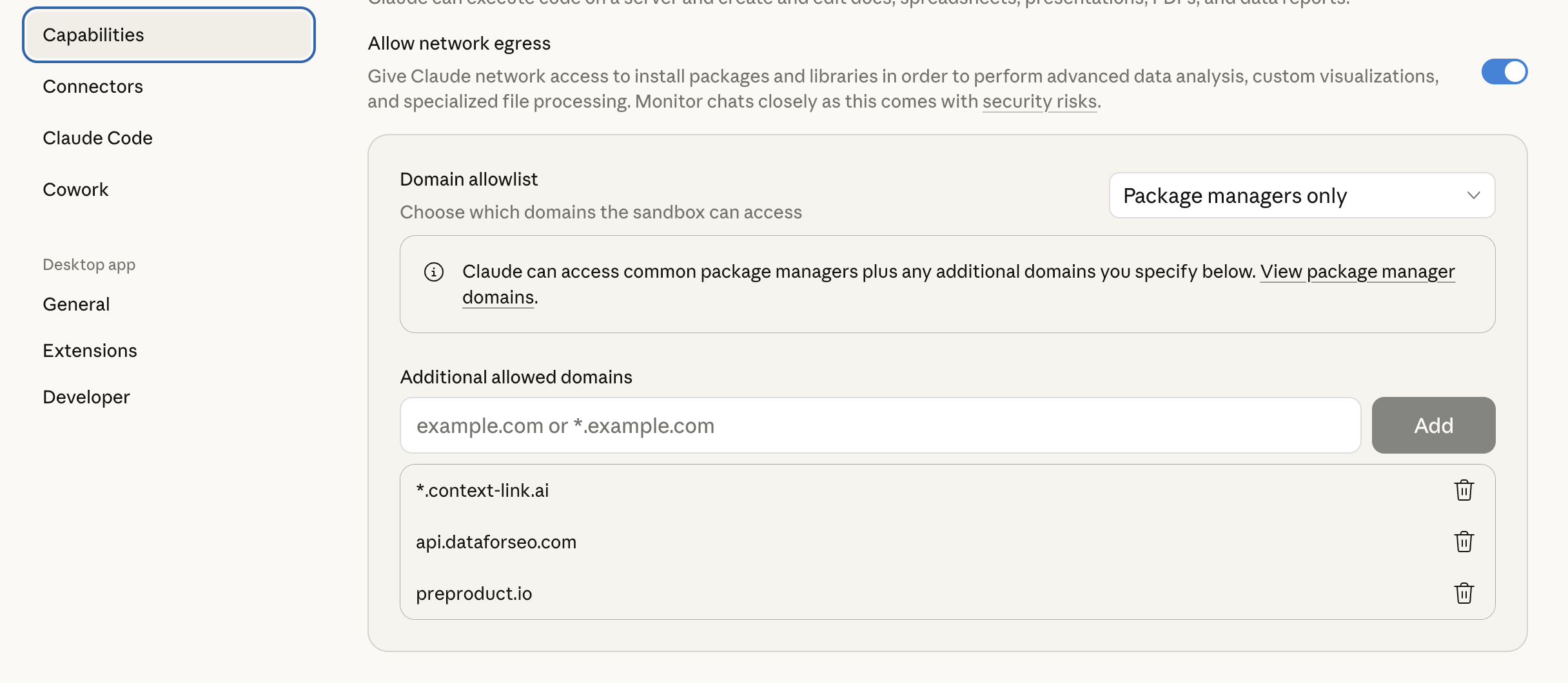
#### Allow network access
For Claude to reach Context Link, you need to allow the domain in Claude's settings:
1. In Claude, go to **Settings → Capabilities → Domain Allowlist**
2. Add `*.context-link.ai` to the allowlist (or select "All domains")
Once installed, say **"get context on [topic]"** in any Claude conversation, and Claude will fetch the relevant snippets from your connected sources.
### OpenAI Codex
1. Download the skill files from [Installation](/integrations)
2. Unzip and place the `get_context` folder into `~/.agents/skills/` (or your repo's `.agents/skills/` directory)
3. Codex auto-detects the skill — say **"get context"** or it will invoke it implicitly when relevant
See the [Codex skills documentation](https://developers.openai.com/codex/skills/) for more on skill file locations and priority.
## How it fits with other access methods
Skills are one of several ways to talk to your Context Link:
- **Claude Skills / Codex Skills** (this doc) — pre-written instructions that teach Claude or Codex to search your sources automatically
- **ChatGPT App Connector** — add Context Link as a connector inside ChatGPT so it can search your sources natively
- **Direct Link** — paste your Context Link URL into any AI chat (ChatGPT, Claude, Copilot, Gemini, Grok) and ask the AI to visit it
- **API** — call your Context Link from scripts, automations, or custom integrations
Skills make the Claude and Codex experience seamless, but the same content is available to any AI tool through the other methods. One setup, every model.
## Example usage
**Grounding a draft in your own content:**
> **You:** Get context on our onboarding flow, then draft a support article explaining the first-time setup experience.
>
> **AI:** *Fetches snippets from your connected Notion docs and help center, then drafts the article using your actual product details.*
**Quick reference during a conversation:**
> **You:** Use context link to find what we've written about pricing objections.
>
> **AI:** *Returns relevant snippets from your blog posts and sales docs, so you can address the objection with your own messaging.*
**Checking existing content before writing something new:**
> **You:** Get context on email automation — I want to see what we've already covered before writing a new post.
>
> **AI:** *Searches your blog, docs, and notes for everything related to email automation, so you don't repeat yourself.*
The skill triggers on phrases like "get context", "use context link", or any reference to internal/company knowledge.
---
Don't have a Context Link account yet? [Sign up and connect your first source](https://context-link.ai) — you can be searching your own content in under 10 minutes.
 Once installed, say **"get context on [topic]"** in any Claude conversation, and Claude will fetch the relevant snippets from your connected sources.
### OpenAI Codex
1. Download the skill files from [Installation](/integrations)
2. Unzip and place the `get_context` folder into `~/.agents/skills/` (or your repo's `.agents/skills/` directory)
3. Codex auto-detects the skill — say **"get context"** or it will invoke it implicitly when relevant
See the [Codex skills documentation](https://developers.openai.com/codex/skills/) for more on skill file locations and priority.
## How it fits with other access methods
Skills are one of several ways to talk to your Context Link:
- **Claude Skills / Codex Skills** (this doc) — pre-written instructions that teach Claude or Codex to search your sources automatically
- **ChatGPT App Connector** — add Context Link as a connector inside ChatGPT so it can search your sources natively
- **Direct Link** — paste your Context Link URL into any AI chat (ChatGPT, Claude, Copilot, Gemini, Grok) and ask the AI to visit it
- **API** — call your Context Link from scripts, automations, or custom integrations
Skills make the Claude and Codex experience seamless, but the same content is available to any AI tool through the other methods. One setup, every model.
## Example usage
**Grounding a draft in your own content:**
> **You:** Get context on our onboarding flow, then draft a support article explaining the first-time setup experience.
>
> **AI:** *Fetches snippets from your connected Notion docs and help center, then drafts the article using your actual product details.*
**Quick reference during a conversation:**
> **You:** Use context link to find what we've written about pricing objections.
>
> **AI:** *Returns relevant snippets from your blog posts and sales docs, so you can address the objection with your own messaging.*
**Checking existing content before writing something new:**
> **You:** Get context on email automation — I want to see what we've already covered before writing a new post.
>
> **AI:** *Searches your blog, docs, and notes for everything related to email automation, so you don't repeat yourself.*
The skill triggers on phrases like "get context", "use context link", or any reference to internal/company knowledge.
---
Once installed, say **"get context on [topic]"** in any Claude conversation, and Claude will fetch the relevant snippets from your connected sources.
### OpenAI Codex
1. Download the skill files from [Installation](/integrations)
2. Unzip and place the `get_context` folder into `~/.agents/skills/` (or your repo's `.agents/skills/` directory)
3. Codex auto-detects the skill — say **"get context"** or it will invoke it implicitly when relevant
See the [Codex skills documentation](https://developers.openai.com/codex/skills/) for more on skill file locations and priority.
## How it fits with other access methods
Skills are one of several ways to talk to your Context Link:
- **Claude Skills / Codex Skills** (this doc) — pre-written instructions that teach Claude or Codex to search your sources automatically
- **ChatGPT App Connector** — add Context Link as a connector inside ChatGPT so it can search your sources natively
- **Direct Link** — paste your Context Link URL into any AI chat (ChatGPT, Claude, Copilot, Gemini, Grok) and ask the AI to visit it
- **API** — call your Context Link from scripts, automations, or custom integrations
Skills make the Claude and Codex experience seamless, but the same content is available to any AI tool through the other methods. One setup, every model.
## Example usage
**Grounding a draft in your own content:**
> **You:** Get context on our onboarding flow, then draft a support article explaining the first-time setup experience.
>
> **AI:** *Fetches snippets from your connected Notion docs and help center, then drafts the article using your actual product details.*
**Quick reference during a conversation:**
> **You:** Use context link to find what we've written about pricing objections.
>
> **AI:** *Returns relevant snippets from your blog posts and sales docs, so you can address the objection with your own messaging.*
**Checking existing content before writing something new:**
> **You:** Get context on email automation — I want to see what we've already covered before writing a new post.
>
> **AI:** *Searches your blog, docs, and notes for everything related to email automation, so you don't repeat yourself.*
The skill triggers on phrases like "get context", "use context link", or any reference to internal/company knowledge.
---