
How to Connect Your Email to Claude (5 Methods Compared)

Sync Email to Claude with Context Link
Claude Native Email Connectors
Claude offers native Gmail access on Pro/Teams/Enterprise and Outlook access on Teams/Enterprise.
Requires Claude Pro or higher for Gmail; Teams/Enterprise for Outlook
You use Claude every day for content, strategy, and support. But the moment you need it to reference a client conversation, a vendor thread, or last month's project update, you're digging through your inbox, copying the text, and pasting it into the chat. There's a better way to connect your email to Claude.
Your inbox contains years of decisions, context, and institutional knowledge. Client preferences, stakeholder feedback, pricing discussions, project timelines, support escalations. It's some of the most valuable business context you have, and Claude can't see any of it unless you hand it over manually, every single time.
In this guide, I'll walk through five ways to connect your email to Claude, from free built-in connectors to a full claude email integration that makes your email knowledge searchable alongside your Notion docs, Google Docs, website, and Basecamp. By the end, you'll know which method fits your workflow, what trade-offs you're making, and how to set it up today.
What "Connect Email to Claude" Actually Means
Before we get into methods, it's worth clarifying what people actually mean when they want to use email with Claude. There are two very different goals:
Goal 1: Email management. You want Claude to work as an AI email assistant that helps manage your inbox directly. Search for emails, draft replies, triage messages, organize threads. This is what Claude's native connectors are built for.
Goal 2: Email as context. You want Claude to draw on your email history when doing other work. Writing a campaign brief? Claude should know the client preferences discussed over email. Drafting a proposal? Claude should reference the pricing conversation from two months ago. Planning a project? Claude should pull in the stakeholder feedback buried in a thread.
Most people searching for "connect email to Claude" start with Goal 1 but quickly realize Goal 2 is the bigger opportunity. Using email conversations as persistent, searchable context for everything Claude does is far more valuable than another inbox management tool.
Both goals are covered below. Methods 1 and 2 handle Goal 1 natively. Method 5 handles Goal 2.

Method 1: Claude's Built-In Google Workspace Connector
Claude now has a native Google Workspace connector that gives it direct access to your Gmail account. If you want to connect Gmail to Claude, this is the simplest way to get started.
How It Works
- Open Claude (web, desktop, or mobile).
- If you're on a Teams or Enterprise plan, your admin needs to enable Google Workspace connectors first. On Pro plans, you can enable it yourself.
- Authenticate your Google account when prompted.
- Claude can now search and read your Gmail messages within the conversation.
The setup takes about two minutes. Once connected, you can ask Claude things like "find the email thread with Sarah about the Q2 budget" or "summarize my recent emails from the product team." Learn more in Anthropic's Google Workspace connector documentation.
What You Can Do
- Search emails using natural language queries
- Read email content including thread history
- Draft replies with formatting and context (Claude creates the draft in Gmail, but cannot send it)
- Access email metadata like senders, dates, and subjects
- Manage labels and organize threads
What You Can't Do
- Send emails directly (drafts only)
- Access attachment content (metadata only, not the files themselves)
- View images embedded in emails
- Use advanced Gmail filters reliably
- Keep context between sessions (everything resets when the conversation ends)
Pros
- Free with any Claude plan (Pro, Teams, Enterprise, Desktop)
- No third-party tools needed
- Official integration from Anthropic
- Simple setup in under two minutes
Cons
- Session-only context. Claude forgets everything when the conversation ends. Next session, you're starting fresh.
- Gmail only. This connector doesn't work with Outlook, Zoho, Fastmail, or other providers.
- No semantic search across your history. Claude searches your inbox on demand, but it doesn't index your email content for meaning-based retrieval. You need to know roughly what you're looking for.
- Only searches email. The connector searches your inbox and nothing else. But the information you need might be in a Notion doc, a Google Doc, a Basecamp thread, or on your website. You have to know the answer is in email before you search, and if it's not, you're back to hunting through other tools manually.
- Rate-limited by Google's API quotas, which can be an issue with large mailboxes.
When to Use This
This is the right choice if you want to give Claude access to email and you primarily use Gmail. If you're already on a Claude plan and just want to search or reference specific emails during a conversation, it works well. Just know it's inbox management, not persistent context.

Method 2: Claude's Microsoft 365 Connector (Outlook)
If you need to connect Outlook to Claude, there's a native Microsoft 365 connector for that, though with some notable differences from the Gmail version.
How It Works
- A Microsoft Entra (Azure AD) Global Administrator enables the Claude connector for your organization.
- A Claude org Owner activates the Microsoft 365 integration in Claude's admin settings.
- Team members authenticate their Microsoft accounts within Claude.
This requires coordination between your Microsoft admin and Claude admin. It's not a self-service setup like the Gmail connector.
Full setup details are in Anthropic's Microsoft 365 connector documentation.
What You Can Do
- Search and retrieve emails across your mailbox
- Analyze communications (project status, client feedback, team alignment)
- Filter by metadata (date ranges, senders, subjects)
- Access archived messages and shared mailboxes (with permissions)
What You Can't Do
- Draft, send, modify, or delete any content (strictly read-only)
- Access the connector on Pro or free plans (Teams and Enterprise only)
Pros
- Official Anthropic integration with enterprise-grade security
- No third-party tools or data routing through external services
- Read-only access reduces security risk
Cons
- Teams or Enterprise plan only (starting at $25/user/month). Not available on Pro.
- Read-only. Can't even draft replies, unlike the Gmail connector.
- Admin-heavy setup. Requires both a Microsoft Global Admin and a Claude Org Owner to configure.
- Session-based. Same limitation as Gmail: context disappears when the conversation ends.
- Only searches Outlook. Same limitation as the Gmail connector: it only searches your mailbox. If the information you need lives in a doc, a project thread, or on your website, you won't find it here.
When to Use This
If your company runs on Microsoft 365 and you're already on a Claude Teams or Enterprise plan, this is the straightforward option. But the admin overhead means it's better suited for organizations that have already committed to Claude at the team level.
Method 3: Zapier / Make Automation
If you want to connect email to Claude through automated workflows rather than live chat, Zapier and Make offer no-code options that bridge Gmail or Outlook with Claude's API.
How It Works
You set up trigger-action workflows. For example:
- New labeled email in Gmail triggers Claude to summarize the thread and save the summary to a Google Doc
- New email matching a search triggers Claude to draft a response
- New attachment triggers Claude to extract key details
These are event-driven automations, not on-demand queries. Claude processes emails when they arrive or when a condition is met, not when you ask a question in the chat.
Pros
- No code required. Visual workflow builders.
- Pre-built templates for common email-to-AI patterns.
- Works with Gmail and Outlook (and thousands of other apps).
- Bi-directional. Can both read from email and write back (send, label, archive).
Cons
- Adds cost. Zapier's free tier is very limited. Professional plans start around $20/month and scale up quickly with volume. Complex workflows can run $69/month or more.
- Trigger-based, not on-demand. You can't ask "what did Sarah say about pricing?" mid-conversation. You'd need to have set up that specific automation in advance.
- Limited context per run. Each trigger sends one email or thread to Claude. There's no way to give Claude your full email history as context.
- Another tool to maintain. Workflows break, APIs change, and someone needs to monitor them.
When to Use This
Zapier and Make are best for recurring, structured email workflows. If you always want a summary of emails with a specific label, or you always want Claude to draft a reply to support emails, automation makes sense. But it doesn't solve the broader "give Claude my email knowledge" problem.
Method 4: Claude Code + MCP / Custom Scripts
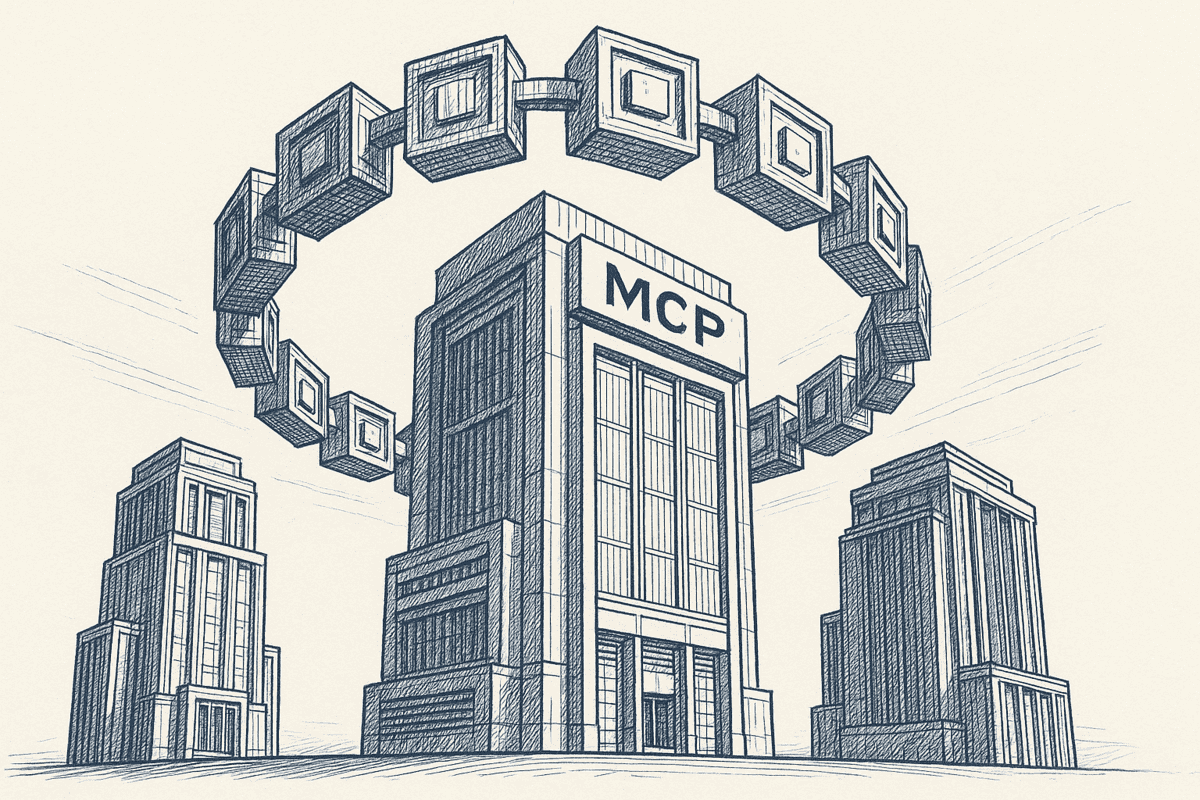
For developers, the most flexible approach is wiring up Claude Code with email access using MCP (Model Context Protocol) servers or custom scripts.
How It Works
There are two main approaches in this camp:
MCP Servers: Tools like Pipedream offer MCP servers that connect Claude Code to Gmail, Google Calendar, and Contacts via HTTP. You configure the MCP server in Claude Code's settings, and Claude can then read, search, and even draft emails programmatically.
Claude Code Skills: You can create custom JavaScript files in ~/.claude/skills/ that call the Gmail API directly. A skill might include search_gmail.js for querying, setup_auth.js for OAuth, and find_unanswered.js for tracking conversations. Claude Code then uses these skills when you ask it email-related questions.
Pros
- Maximum flexibility. Full Gmail API access means you can do anything the API allows.
- Highly customizable. Build exactly the workflow you need.
- Can be extended to handle complex logic (batch operations, thread analysis, CRM-like features).
Cons
- Requires developer skills. JavaScript, OAuth, API configuration. This isn't for non-technical users.
- Maintenance burden. OAuth tokens expire, APIs change, and scripts need updating.
- Privacy concerns. With MCP servers like Pipedream, your email data routes through a third-party service before reaching Anthropic. That's two external parties handling your business communications.
- Doesn't scale to teams. Each person needs their own setup. There's no shared context or team-level access.
- No persistent indexing. Like the native connectors, this is session-based. Claude queries your inbox live but doesn't maintain a searchable index of your email history. Without grounded context, AI is more likely to hallucinate when referencing email details from memory.
When to Use This
If you're a developer who wants complete control over how Claude interacts with your email, and you're comfortable maintaining the setup, this is the most powerful option. But for teams or non-technical users, the overhead is significant.
Method 5: Context Link (Managed Context Layer)
The methods above all treat email as something Claude accesses in real time, one conversation at a time. Context Link takes a different approach to connecting email to Claude: as a managed RAG service, it indexes your email content once, then makes it searchable by meaning alongside everything else you've connected.
How It Works
- Connect your email as a source in Context Link's admin. Works with any provider that supports IMAP: Gmail, Outlook, Zoho, Fastmail, custom domains.
- Choose what gets indexed. Select specific folders (Sent, Inbox, specific labels), date ranges, or accounts. You control exactly what Claude can see.
- Context Link indexes and chunks your email threads, deduplicates conversations, and creates semantic embeddings for meaning-based search.
- Use it in any AI tool. Add the ChatGPT app connector, install the Claude skills, or paste your personal link into any AI chat. Ask "get context on the pricing discussion with Acme Corp" and get the most relevant email snippets back as clean markdown.
What Makes This Different
Email becomes searchable context, not an inbox tool. Instead of asking Claude to find a specific email, you ask it to "get context on" a topic. Context Link searches across your email threads by meaning and returns the most relevant snippets. You don't need to know which email you're looking for.
You don't have to guess where the information lives. This is the fundamental difference from native connectors. With the Gmail or Outlook connector, you're searching one source: email. But the pricing discussion you need might be in an email thread, a Notion page, a Google Doc, or a Basecamp message. You have to know where the information is before you can search for it. With Context Link, you just ask for context on a topic and it searches across all your connected sources at once. The right snippets come back whether they live in email, docs, your website, or a project thread.
Model-agnostic. The same context works in Claude, ChatGPT, Copilot, and Gemini. Connect your email once and use it everywhere, not just inside Claude.
Persistent and automatically up to date. Context doesn't disappear when the conversation ends. Context Link syncs your email on a recurring schedule, picking up new messages without any manual action. This is especially handy for email, where new conversations arrive constantly. Your indexed content is always available, always current, and always searchable.
Smart thread handling. Context Link automatically deduplicates email threads, parsing nested quotes and reply chains into structured conversations. It identifies who said what, ranks your team's messages higher for relevance, and works with standard email formats.
Privacy controls. You choose exactly which folders, date ranges, and accounts to index. Email connections require a PIN code. Credentials are encrypted. Nothing gets indexed that you haven't explicitly approved.
Save findings as Memories. When Claude surfaces useful email context, you can save it as an AI memory under any /slash route. For example, save a summary of client preferences to /acme-preferences so you can retrieve it next time without searching again.
Pros
- No code required. Connect and configure in the admin panel.
- Works across all AI tools (Claude, ChatGPT, Copilot, Gemini).
- Semantic search across email finds relevant content by meaning, not just keywords.
- Team-friendly. Connect shared email accounts at the org level; every teammate benefits.
- Privacy-first. You control what gets indexed, credentials are encrypted, and PINs are required.
- Email is one of many sources. Also connects Notion, Google Docs, OneDrive, websites, Basecamp, and file uploads.
Cons
- Requires a Context Link subscription (Starter plan from $9/month).
- Email indexing has a short delay while content is synced and embedded (not real-time like native connectors).
- Cannot send or draft emails. Context Link is a read layer, not an inbox management tool.
When to Use This
If you want your email conversations to become part of your team's broader context engineering strategy, where email, docs, websites, and project tools are all searchable by any AI tool, Context Link is the approach that handles this without code or infrastructure.
Which Claude Email Integration Method Should You Choose?
| Google Workspace | Microsoft 365 | Zapier / Make | Claude Code + MCP | Context Link | |
|---|---|---|---|---|---|
| Cost | Included with Claude | Included (Teams+) | $20-69+/mo | Free (DIY) | From $9/mo |
| Setup Time | 2 min | 15-30 min (admin) | 20-60 min | Hours-days | ~10 min |
| Gmail Support | Yes | No | Yes | Yes | Yes |
| Outlook Support | No | Yes | Yes | Possible | Yes |
| Other Providers | No | No | Limited | Possible | Yes (any IMAP) |
| Semantic Search | No | No | No | No | Yes |
| Persistent Context | No | No | Partial | No | Yes |
| Works in Other AI Tools | No | No | Partial | No | Yes |
| Team Sharing | No | No | No | No | Yes |
| Code Required | No | No | No | Yes | No |
| Can Draft/Send | Draft only | No | Yes | Yes | No |
Quick Decision Framework
"I just want to search my inbox during a Claude conversation." Use Method 1 (Gmail) or Method 2 (Outlook). They're built in, free, and work out of the box.
"I want to automate email tasks with Claude." Use Method 3 (Zapier/Make). Set up triggers for recurring workflows like email summaries or auto-drafts.
"I'm a developer and want full API control." Use Method 4 (Claude Code + MCP). Maximum flexibility, but you're building and maintaining everything yourself.
"I want to connect email to Claude (and other AI tools) as persistent, searchable context." Use Method 5 (Context Link). Your email knowledge becomes part of a broader context layer that works across Claude, ChatGPT, Copilot, and Gemini.
Setting Up Email Context for Your Team
If you're thinking about this for a team, not just yourself, the choice narrows quickly.
Claude's native connectors are personal. Each person connects their own account, and there's no way to share email context across the team. If you want everyone to have access to the same support@ inbox or the same client communication history, native connectors won't get you there.
Zapier can share workflows, but each team member still needs their own Claude API access, and the workflows are trigger-based. You can't give your whole team on-demand access to email context.
Claude Code + MCP requires each developer to set up their own environment. It doesn't scale to non-technical team members.
Context Link is designed for this. Connect a shared email account at the org level, and every team member gets access to that email context through their own Claude skills, ChatGPT app connector, or personal link. The support team can search the same email history as the sales team, without anyone setting up their own connection.
Your email effectively becomes an email knowledge base for your team. Combined with connecting Notion to Claude, connecting Google Docs to Claude, your website, and Basecamp, it's one piece of a complete AI knowledge base that everyone can draw on.
Conclusion
There are five realistic ways to connect your email to Claude today. Each one makes a different trade-off between simplicity, flexibility, and depth.
- Claude's Google Workspace connector is the easiest starting point for Gmail users who want to search and draft within a conversation.
- Claude's Microsoft 365 connector does the same for Outlook, but requires a Teams or Enterprise plan and admin setup.
- Zapier / Make adds automation for recurring email workflows, at the cost of another subscription and ongoing maintenance.
- Claude Code + MCP gives developers full control, but demands technical skills and doesn't scale to teams.
- Context Link turns your email into persistent, searchable context that works across Claude, ChatGPT, Copilot, and Gemini, alongside your Notion, Google Docs, website, and Basecamp content.
The bigger insight is this: most approaches treat email as an inbox problem. Search it, draft replies, triage messages. That's useful, but the real opportunity is using your email conversations as context for everything else AI helps you do, turning Claude into a personalized AI assistant that genuinely understands your business. The decisions, preferences, relationships, and institutional knowledge locked in your email threads are exactly what makes AI outputs go from generic to genuinely useful.
Connect your email to Context Link, test a search on a topic you've discussed over email, and see the difference when Claude actually knows what your team has been talking about.