
How to Connect Google Docs to Claude (5 Methods Compared)


Sync Google Drive to Claude with Context Link
Claude Native Google Drive Connector
Claude Pro/Team users can attach Google Drive files directly in conversations via the attachment button.
Requires Claude Pro subscription
You're copy-pasting Google Docs into Claude for the third time this week. There's a better way.
If your Google Docs hold your meeting notes, project specs, brand guidelines, and everything else Claude needs to give you better outputs, why are you still manually feeding it the same files every session? Most people spend 5-10 minutes per session just setting up context before they can even start their real work.
In this guide, I'll show you five ways to connect Google Docs to Claude (and ChatGPT, Copilot, and Gemini), from free manual methods to automated context links. By the end, you'll know which method fits your workflow, what trade-offs you're making, and how to set it up today.
Quick Answer: 5 Ways to Connect Google Docs to Claude
Before we dive deep into each method, here's the quick overview:
Method 1: Manual Uploads + Shared Links (Claude.ai)
Upload Google Docs as files or share view-only links directly inside Claude. Works with Claude only, fast for one-off chats, manual per conversation.
Method 2: Google Workspace Add-ons
Install extensions like GPT for Sheets and Docs from the Google Workspace Marketplace and configure them to call Claude's API. Works doc-by-doc, requires API key or paid plan from the add-on.
Method 3: Zapier Automation with Context Link
Build automated workflows where Context Link generates context from your Google Docs and connects it to 8,000+ apps through Zapier. Great for recurring tasks like emailing summaries or updating databases.
Method 4: Automation Platforms (Zapier, Pipedream, Make)
Use no-code automation tools to create workflows that connect Google Docs and Claude API. Great for automated, recurring tasks like summarizing new meeting notes or generating reports.
Method 5: Context Link (Model-Agnostic Context URLs)
Turn your entire Google Docs library into a searchable URL that works with Claude, ChatGPT, Copilot, and Gemini. Paste your personal context link into any AI chat, and it semantically searches your docs to return relevant snippets.
Here's how they compare:
| Method | Setup Time | Cost | Model Support | Best For |
|---|---|---|---|---|
| Manual Uploads + Links | 2-5 min | Free | Claude only | One-off chats, small doc sets |
| Google Workspace Add-ons | 10 min | Free to $10/mo | Claude + others (depends on add-on) | Drafting inside Google Docs |
| Zapier + Context Link | 20-30 min | Zapier + Context Link | Any app | Automated workflows |
| Automation Platforms | 30-60 min | $20-50/mo + API costs | Claude (API) | Workflow automation |
| Context Link URLs | 10 min | Subscription | All models | Searchable context across models |
Now let's dive into each method in detail.

Photo by Rubaitul Azad on Unsplash
Method 1: Manual Uploads + Shared Links (Claude.ai)
Claude doesn't yet have a native Google Drive connector. The fastest way to give it your Google Docs is to either upload exported files or paste view-only links.
What It Is
Claude accepts file uploads (Docs exported as .docx or .pdf) and can visit public or view-only Google Docs links you provide. For private docs, share them with a view link and toggle "Anyone with the link can view" before pasting into Claude.
How to Set It Up
Step 1: Prepare Your Doc
Export your Google Doc as .docx or .pdf, or create a view-only share link (Share > Anyone with link can view).
Step 2: Start a New Claude Chat
Go to claude.ai and start a new conversation.
Step 3: Attach or Paste
Click the paperclip icon to upload the exported file, or paste the view-only Google Docs link directly into the chat.
Step 4: Prompt with Context
Add your question and any guidance: "Using the attached doc, summarize the top 5 decisions and action items."
Pros and Cons
Pros:
- Free and fast
- No third-party tools required
- Works with attachments up to Claude's size limits
Cons:
- Manual per conversation
- No Drive-wide search; you must pick specific docs
- Requires exporting or link sharing each time
- Not ideal for large libraries
When to Use This Method
Choose manual uploads and links if:
- You only need Claude to read a few docs occasionally
- You're testing the workflow before automating
- You can't install add-ons or automation tools
For recurring work or big doc libraries, jump to Method 5 (Context Link).
Method 2: Google Workspace Add-ons
If you want Claude functionality directly inside your Google Docs while you're drafting, Google Workspace add-ons are the way to go, provided the add-on lets you bring your own Claude API key.
What It Is
Google Workspace add-ons are extensions you install from the Google Workspace Marketplace that add AI features directly into Google Docs. Popular options like GPT for Sheets and Docs support bring-your-own keys and can be configured to call Claude via OpenRouter or directly via the Anthropic API.
These add-ons typically add a sidebar to your Google Doc where you can prompt AI with content from your doc, then insert the AI's response back into the document.
How to Set It Up
Step 1: Open Google Workspace Marketplace
Go to workspace.google.com/marketplace or open a Google Doc and navigate to Extensions > Add-ons > Get Add-ons.
Step 2: Search and Install Add-on
Search for "GPT for Sheets and Docs" or "AI for Docs." Review the permissions. Click "Install" and grant access.
Step 3: Launch the Add-on
Open a Google Doc, go to Extensions > [Add-on Name] > Launch to open the sidebar.
Step 4: Connect Your Claude API Key
If the add-on supports custom models, select "Claude" or "Custom API" and paste your Anthropic API key (get one from console.anthropic.com or a routing provider like OpenRouter). Pick the model (Claude 3.5 Sonnet is a good default).
Step 5: Use Claude Inside Your Doc
Highlight text, send it to Claude via the sidebar, and insert responses back into the doc.
Pros and Cons
Pros:
- Works directly inside Google Docs while you're drafting
- No need to switch between Claude and Docs
- Some add-ons support multiple models (Claude, GPT-4o, Gemini)
- Free tiers available for basic use
Cons:
- Works doc-by-doc (no Drive-wide search)
- Requires installation and setup per user
- API key handling varies by add-on, review storage policies
- Google Workspace admins may block third-party add-ons
When to Use This Method
Choose Google Workspace add-ons if:
- You want AI help while actively drafting inside Google Docs
- You need to generate, edit, or rewrite text in place
- You're comfortable granting add-on permissions and managing API keys
- You don't need to query content across multiple docs

Photo by Greg Bulla on Unsplash
Method 3: Zapier Automation with Context Link
If you want to build automated workflows where Context Link generates context from your Google Docs and connects it to thousands of other apps, Zapier integration is the solution.
What It Is
Context Link's Zapier integration allows you to generate markdown-formatted context from your Google Docs (and other connected sources) and use it in automated workflows. This is different from Method 4 because instead of manually calling the Claude API, you're building automated workflows that generate and route context to email, databases, Slack, Airtable, and 8,000+ other apps.
The core action is "Generate Context," where you input a topic or keyword and Context Link outputs relevant markdown-formatted information from your connected sources.
How to Set It Up
Step 1: Connect Context Link to Zapier
Go to Zapier's Context Link integration page and connect your Context Link account to Zapier.
Step 2: Choose a Trigger App
Select a trigger that starts your workflow. Popular options:
- New file added to Google Drive folder
- Scheduled time (daily, weekly)
- New email received
- New row in Google Sheets
- Webhook trigger
Step 3: Add Context Link "Generate Context" Action
Add the Context Link action "Generate Context" to your workflow. Configure it with a topic or keyword that describes what context you need from your Google Docs.
For example:
- Topic: "customer feedback themes"
- Topic: "Q4 marketing campaigns"
- Topic: "product roadmap priorities"
Step 4: Add Output Actions
Add steps to do something with the generated context:
- Email by Zapier: Send the context summary via email
- Airtable: Store context in a database table
- Slack: Post context to a team channel
- Google Sheets: Add context to a spreadsheet
- ActiveCampaign: Use context for personalized marketing campaigns
Step 5: Test and Activate
Test your workflow with sample data, then turn it on to run automatically.
Pros and Cons
Pros:
- Automates context generation from Google Docs
- Works with 8,000+ apps through Zapier
- No manual prompting required once set up
- Semantic search across all your Context Link sources
- SOC 2 and GDPR compliant
- Great for recurring tasks (daily summaries, weekly reports)
Cons:
- Requires both Zapier and Context Link subscriptions
- Currently in beta
- Steeper learning curve than direct Claude use
- Not for real-time conversational queries
- Adds two third-party dependencies
When to Use This Method
Choose Zapier + Context Link if:
- You want fully automated workflows that run on schedules or triggers
- You need to route context from Google Docs to tools beyond just AI chats (Slack, Airtable, email)
- You have recurring tasks like weekly summaries or daily briefings
- You're comfortable with no-code automation platforms
- You want semantic search without manual querying
This method is ideal for teams building knowledge workflows that distribute context across multiple tools, not just AI chats.
Method 4: Automation Platforms (Zapier, Pipedream, Make)
If you want fully automated workflows where Claude processes Google Docs without manual uploads using the Claude API directly, automation platforms are the solution.
What It Is
Automation platforms like Zapier, Pipedream, and Make let you create workflows that connect Google Docs and the Claude API. You define triggers (like "new doc created in this folder") and actions (like "send doc to Claude, summarize it, then post to Slack").
How to Set It Up
Step 1: Create Account on Automation Platform
Sign up for Zapier, Pipedream, or Make. Free tiers exist but have usage limits.
Step 2: Set Google Docs as Trigger
Create a new workflow. Choose Google Docs as your trigger app and select an event like "New File in Folder" or "Updated File." Connect your Google Drive account and specify which folder to monitor.
Step 3: Add Claude API Action
Add an action step and choose a generic "HTTP request" or a Claude-specific integration if available. Paste your Anthropic API key and set the endpoint (https://api.anthropic.com/v1/messages). Provide the doc content in the request body.
Step 4: Configure Your Prompt
Define what you want Claude to do: "Summarize this document in 3 bullet points: {{file_content}}" or "Extract action items from these meeting notes."
Step 5: Add Output Actions (Optional)
Send Claude's response to Slack, email, a new Google Doc, or a Google Sheet.
Step 6: Test and Activate
Test with a sample doc, then turn it on to run automatically.
Pros and Cons
Pros:
- Fully automated, no manual uploads or prompts needed
- Can connect Google Docs to many other tools (Slack, Notion, email)
- Great for recurring tasks (auto-summarize new meeting notes, generate weekly reports)
- Flexible for custom workflows
Cons:
- Requires Claude API key and usage costs (you pay per API call)
- Automation platform subscription on top of API costs
- Steeper learning curve than other methods
- Not real-time in chat; this is background automation

When to Use This Method
Choose automation platforms if:
- You want automated workflows that run without manual intervention
- You're comfortable with API keys and no-code workflow builders
- You need to combine Claude with other tools beyond just Google Docs
- You have recurring, predictable tasks (summaries, reports, data extraction)
Method 5: Context Link (Searchable Context Layer Across AI Models)
I built Context Link after getting tired of re-uploading the same Google Docs into Claude every week. Instead of uploading files one by one, Context Link turns your entire Google Docs library into a searchable URL that works with Claude, ChatGPT, Copilot, Gemini, and any other AI chat tool.
What It Is
Context Link gives you a personal subdomain (like yourname.context-link.ai) that you paste into Claude or any AI chat before your prompt. When you add a search phrase after a slash (like yourname.context-link.ai/meeting-notes), Context Link runs a semantic search across your connected Google Docs and returns the most relevant snippets in clean markdown.
The key difference: instead of uploading specific docs one at a time, Claude queries your entire Google Docs library dynamically every time you use your context link. It's like giving AI a search engine for your docs instead of a file cabinet.
How to Set It Up
Step 1: Sign Up for Context Link
Go to context-link.ai and create an account. You'll get a personal subdomain like yourname.context-link.ai.
Step 2: Connect Google Drive
In the Context Link dashboard, click "Add Source" and select "Google Drive." Authenticate with your Google account and grant Context Link read-only access to your Drive.
Step 3: Select Folders or Files
Choose which Google Drive folders or specific docs to sync. You can include your entire Drive or scope it to specific folders like "Work Docs" or "Project Notes." Context Link will index the content for semantic search.
Step 4: Copy Your Context Link
Your context link will look like yourname.context-link.ai/. You can add any search phrase after the slash to dynamically search your docs. For example:
- yourname.context-link.ai/meeting-notes
- yourname.context-link.ai/product-strategy
- yourname.context-link.ai/brand-guidelines
Pro Tip: Set up a text replacement shortcut (like typing c-l to auto-expand to your full context link) so you can paste it quickly into any AI chat.
Step 5: Use with Any AI Model
Paste your context link into Claude, ChatGPT, Copilot, or Gemini before your prompt:
Please visit this link for context: yourname.context-link.ai/meeting-notes

Based on my recent meeting notes, what are the top 3 action items from last week's product sync?
The AI visits your context link, Context Link semantically searches your Google Docs for relevant snippets, and returns them in clean markdown. The AI then uses those snippets to answer your question.
Why This Is Different
Most methods require you to upload specific docs or select files manually each time. Context Link takes a different approach:
Instead of uploading docs one by one, Claude searches your entire Google Docs library dynamically.
Instead of keyword matching, Context Link uses semantic search to find relevant snippets by meaning, not just exact words.
Instead of being locked to one model, the same context link works with Claude, ChatGPT, Copilot, Gemini, Notion AI, and Grok.
Instead of full file dumps, you get focused, relevant snippets that fit within model context windows.
Think of it as giving AI a search engine for your Google Docs instead of a file upload button.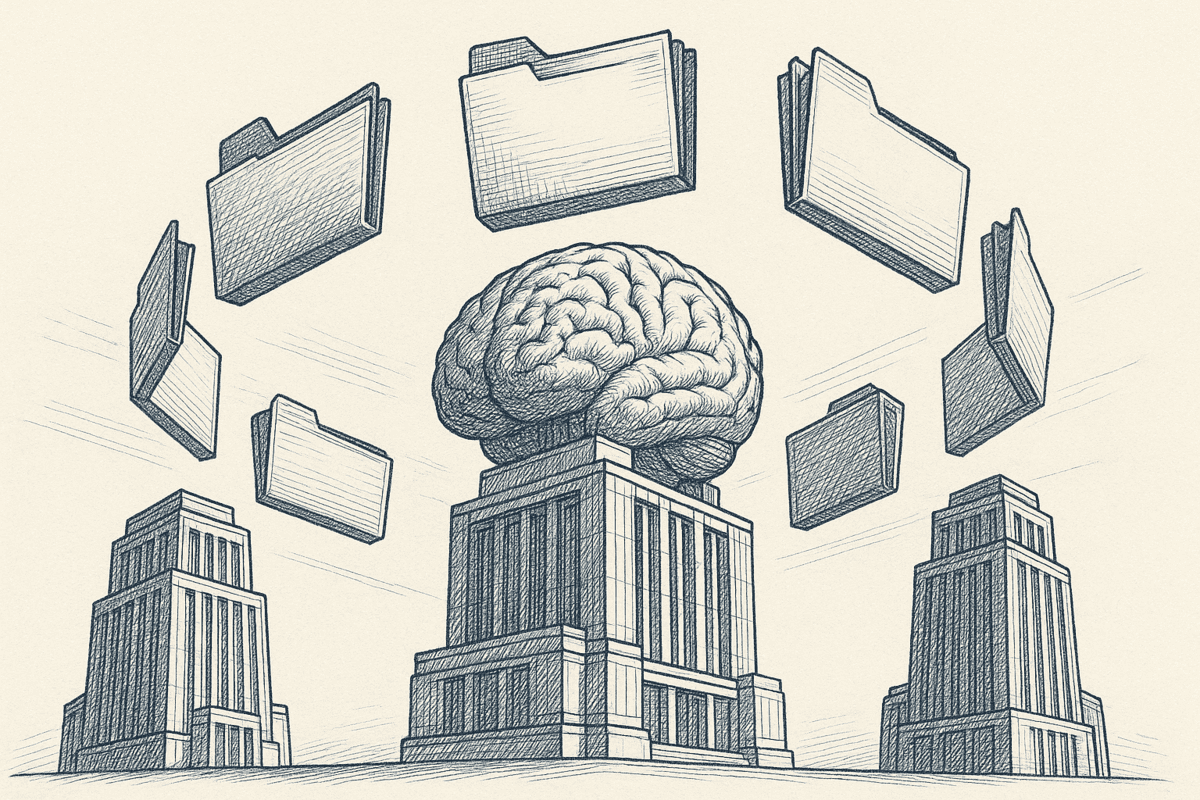
Pros and Cons
Pros:
- Model-agnostic: works with Claude, ChatGPT, Copilot, Gemini, Notion AI, Grok, and any AI chat tool
- Semantic search returns only relevant snippets, not full docs
- One link, reusable across all prompts and conversations
- Dynamically searches your entire Google Docs library every time
- You control access at folder and file level
- Returns AI-friendly markdown already formatted for models
- Works for teams: share context links or use org-level sources
Cons:
- Paid service
- Adds external dependency
- Requires pasting link manually before each prompt
When to Use This Method
Choose Context Link if:
- You use multiple AI models (Claude, ChatGPT, Copilot, Gemini) and want one solution for all
- You have a large Google Docs library and want semantic search instead of manual file selection
- You want repeatable, team-friendly workflows without rebuilding for each model
- You're a marketer, founder, content team, or support team using AI daily
- You want to connect multiple sources beyond just Google Docs (like Notion, websites, etc.)
Real-World Example
Let's say you're a product manager preparing for a sprint planning meeting. You have dozens of Google Docs with sprint retrospectives, feature specs, and roadmap notes scattered across your Drive.
Without Context Link:
1. Open Google Drive
2. Search for "retrospective" and find 10 docs
3. Open each one and skim for recurring blockers
4. Copy relevant sections
5. Paste into Claude
6. Ask your question
7. Repeat tomorrow for a different question
With Context Link:
1. Paste yourname.context-link.ai/sprint-retrospectives
2. Ask: "Based on our last 3 sprint retrospectives, what are the recurring blockers we should address this sprint?"
3. Done
Claude (or ChatGPT, or Copilot) visits your context link, which semantically searches your Drive for relevant retro docs, returns the top snippets in markdown, and uses those to identify recurring blockers. You get a focused, accurate answer in seconds. Tomorrow, you use the same link for a different question.
Comparison Table: Which Method Should You Use?
Now that you've seen all four methods, here's how to choose:
Choose Manual Uploads + Links If:
- You only use Claude for AI tasks
- You work with a small, predictable set of Google Docs
- You want a free, quick setup with no third-party tools
- You don't mind uploading or linking docs per conversation
Example use case: A founder who uses Claude to reference 3-5 key product docs in conversations.
Choose Google Workspace Add-ons If:
- You want AI help while actively drafting inside Google Docs
- You need to generate, edit, or rewrite text in place
- Your workflow centers on doc editing rather than research
- You're comfortable managing API keys and permissions
- You don't need to query across multiple docs
Example use case: A content writer who drafts blog posts in Google Docs and wants Claude to suggest edits and rewrites in real time.
Choose Zapier + Context Link If:
- You want fully automated workflows that run on schedules or triggers
- You need to route context from Google Docs to tools beyond AI chats (Slack, Airtable, email)
- You have recurring tasks like weekly summaries or daily briefings
- You're comfortable with no-code automation platforms
- You want semantic search without manual querying
Example use case: A team lead who wants a daily automated email with context about customer feedback themes from Google Docs.
Choose Automation Platforms If:
- You want automated workflows that run without manual intervention
- You have recurring, predictable tasks (summaries, reports, data extraction)
- You're comfortable with API keys and no-code workflow builders
- You need to combine Claude with other tools (Slack, Notion, email)
- You're a power user or developer building custom integrations
Example use case: A product team that automatically summarizes every new meeting note doc and posts the summary to Slack using Claude 3.5 Sonnet.
Choose Context Link URLs If:
- You use multiple AI models (Claude, ChatGPT, Copilot, Gemini) and want one solution
- You have a large Google Docs library and want semantic search
- You want repeatable workflows without building infrastructure
- You're a marketer, founder, content team, or support team using AI daily
- You need to connect multiple sources beyond just Google Docs (Notion, websites, etc.)
- You value model-agnostic, team-friendly setups
Example use case: A marketing team that wants Claude and ChatGPT to both search the same Google Docs library of brand guidelines, campaign briefs, and past content.
Use Cases: What Can You Do with Google Docs and Claude?
Once you've connected Google Docs to Claude (using any of the methods above), here are five powerful use cases to try:
1. Summarize Meeting Notes
Setup: Connect your Google Drive folder with meeting notes.
Prompt: "Based on my Google Docs meeting notes from the last two weeks, summarize the key decisions and action items."
Best Models: Claude 3.5 Sonnet (long-context, reliable summaries)
This saves hours of re-reading old notes and helps you prepare for follow-up meetings or status reports.

Photo by Bluestonex on Unsplash
2. Draft Content Based on Existing Docs
Setup: Connect your Google Docs with product docs, brand guidelines, and past content.
Prompt: "Using my product docs and brand guidelines in Google Docs, draft a blog post outline about our new feature launch."
Best Models: Claude 3.5 Sonnet (strong style adherence), Claude 3 Opus (deeper reasoning)
Claude pulls relevant context from your existing docs, so your new content stays consistent with your brand voice and product messaging. If you've already set up how to connect your website to Claude, you can combine that with your Google Docs for even richer context.
3. Translate and Localize Documents
Setup: Connect Google Docs with your brand guidelines and existing localized content.
Prompt: "Based on my brand voice guidelines in Google Docs, translate this product description into Spanish while maintaining our tone."
Best Models: Claude 3.5 Sonnet (fluent, tone-aware), Claude 3 Opus (higher fidelity for tricky phrasing)
By referencing your existing docs, Claude maintains your brand voice and terminology preferences across translations.
4. Answer Questions from Your Documentation
Setup: Connect Google Docs with help center articles, internal policies, or product specs.
Prompt: "According to our internal docs in Google Drive, what's our refund policy for annual subscriptions?"
Best Models: Claude 3.5 Sonnet, Claude 3 Haiku (fast for short answers)
This is especially useful for support teams who want to quickly reference policies or product details without hunting through docs manually. Similar to how to connect Notion to Claude, you can build a comprehensive knowledge base across multiple sources.
5. Generate Reports from Structured Data
Setup: Connect Google Docs with project templates and past reports.
Prompt: "Based on my Q3 sales report template and last quarter's data in Google Docs, draft a Q4 sales report with updated numbers."
Best Models: Claude 3.5 Sonnet (good with tables and structure)
Claude can follow your existing report structure and fill in new data, saving hours of report formatting.
Security and Privacy: What Can Claude See?
Before connecting Google Docs to Claude, it's important to understand what each method allows Claude to access and how to control permissions.
Manual Uploads + Links
What Claude can see:
- Files you upload in the current conversation
- Public or view-only links you paste (based on Google Drive sharing)
How to minimize risk:
- Avoid uploading sensitive docs unless necessary
- Use view-only links with minimal scope
- Revoke links or adjust sharing when done
Google Workspace Add-ons
What add-ons can see:
- Content of open docs (depends on add-on permissions)
- Some add-ons request broad Drive access, review carefully
- Add-on vendors may store or process your doc content on their servers
How to minimize risk:
- Review add-on permissions before installing
- Only install add-ons from trusted developers with good reviews
- Check if your Google Workspace admin has approved the add-on
- Revoke add-on access in Google Account Third-party apps settings
Zapier + Context Link
What Zapier and Context Link can see:
- Only files and folders you've connected in Context Link
- Zapier sees the markdown context generated by Context Link
- No direct access to raw Google Docs files
How to minimize risk:
- Scope Context Link sources to specific folders
- Review Zapier workflows regularly
- Use secure API connections
- Monitor Zapier task history for unexpected activity
Automation Platforms
What automation platforms can see:
- Google Docs content scoped to folders/docs you select
- Claude API receives file content you send via the workflow
- API keys give access to Claude on your behalf
How to minimize risk:
- Protect your API keys (never share them publicly)
- Use environment variables or vaults for keys in workflows
- Regularly audit which workflows have access to your Google Drive
- Monitor Anthropic usage for anomalies in Claude console
Context Link
What Context Link can see:
- Only folders and files you explicitly connect
- Context Link stores semantic embeddings (not raw content) for search
- Read-only access (no write or edit permissions)
- Claude/ChatGPT/Copilot only see the snippets Context Link returns when you use your context link
How to minimize risk:
- Choose specific folders to sync, not your entire Drive
- Use private links with PINs for sensitive content
- Disconnect sources you no longer use
- Review connected sources regularly in Context Link dashboard
Best Practices for All Methods
- Start small: Connect a test folder first, not your entire Drive
- Review permissions: Check what access you're granting before connecting
- Audit regularly: Review which tools have access to your Google Drive monthly
- Use file-level permissions: Don't grant full Drive access if you can scope to specific folders
- Don't connect sensitive files: Avoid connecting docs with PII, financial data, or passwords unless absolutely necessary
Troubleshooting Common Issues
Here are the most common problems people encounter when connecting Google Docs to Claude, and how to fix them:
"Claude says it can't open my Google Doc link"
Possible causes:
- Link sharing isn't set to "Anyone with the link can view"
- Doc is restricted to your workspace
- The link is to a shortcut, not the original file
Solutions:
- Update sharing to view-only for anyone with the link
- Test the link in an incognito window
- Grab the direct doc link instead of a shortcut
"Add-on isn't appearing in Extensions menu"
Possible causes:
- Add-on installation failed
- Google Workspace admin has blocked third-party add-ons
- Browser cache issue
Solutions:
- Reinstall from Google Workspace Marketplace
- Check with your Google Workspace admin if third-party add-ons are allowed
- Refresh the doc or open it in a new tab
- Clear browser cache and try again
"Zapier workflow with Context Link isn't generating context"
Possible causes:
- Context Link sources not properly connected
- Topic/keyword query too vague or specific
- Zapier authentication issue
Solutions:
- Verify Context Link sources are connected and synced
- Test the "Generate Context" action manually in Zapier
- Try different topic keywords to ensure results are returned
- Re-authenticate Context Link connection in Zapier
"Automation workflow isn't triggering"
Possible causes:
- Google Docs trigger is set incorrectly
- API key is invalid or rate-limited
- Workflow permissions issues
Solutions:
- Verify trigger is set correctly (new doc vs updated doc)
- Check API key is valid and not rate-limited in Anthropic console
- Review workflow logs in your automation platform (Zapier, Make, Pipedream)
- Test the workflow manually to isolate the issue
"Claude isn't finding the right docs in my Context Link"
Possible causes:
- Relevant docs aren't synced in Context Link
- Search phrase is too vague
- Dynamic search is scoped to wrong folders
Solutions:
- Ensure relevant docs are synced in Context Link dashboard
- Use more specific search phrases after the slash (e.g., /product-roadmap instead of /docs)
- Check if your dynamic search is scoped to the right Google Drive folders
- Try different phrasing in your prompt to match how content is written in your docs
Conclusion
You've learned five ways to connect Google Docs to Claude (and ChatGPT, Copilot, and Gemini):
- Manual Uploads + Links: Free, fast, Claude-only, best for small doc sets
- Google Workspace Add-ons: Great for drafting inside docs, works doc-by-doc, needs API key support
- Zapier + Context Link: Automated workflows that route context to 8,000+ apps
- Automation Platforms: Powerful for automated workflows, requires technical setup and API costs
- Context Link URLs: Model-agnostic, semantic search across entire doc library, reusable URL
For most people: if you're using AI daily across multiple models and want something that just works, Context Link URLs is the fastest path. If you only use Claude and need quick access to a handful of docs, manual uploads and links are fine. If you're automating knowledge workflows across multiple tools, Zapier + Context Link gives you powerful automation. If you're automating repetitive Claude API workflows, traditional automation platforms like Make give you control. And if you're drafting in Google Docs all day, add-ons keep Claude in your sidebar.
The bigger picture: giving AI tools access to your Google Docs (your notes, specs, and knowledge) is how you get better, more accurate answers. You're not training Claude; you're giving it the right context at the right time. And the best solutions work across all AI models, not just one.
Pick the method that fits your workflow, set it up today, and stop manually uploading the same Google Docs into Claude every week.
Ready to give Claude, ChatGPT, and Copilot access to your Google Docs in minutes? Try Context Link, connect your Drive, and get a personal context link you can reuse in any AI chat. Start your free trial at context-link.ai.
FAQ
Can I connect Google Docs to Claude for free?
Yes. Manual uploads and shared links on Claude are free. You can also use Google Workspace add-ons with free tiers if they support your own Claude API key. Automation platforms and Context Link are paid services.
Does this work with ChatGPT, Copilot, and Gemini too?
It depends on the method:
- Manual Uploads + Links: Claude only
- Google Workspace Add-ons: Some add-ons support multiple models (check the add-on's features)
- Zapier + Context Link: Works with any app Zapier connects to
- Automation Platforms: Works with Claude API; you'd need separate workflows for other models
- Context Link URLs: Works with Claude, ChatGPT, Copilot, Gemini, Notion AI, and Grok
If you want one setup that works across all AI models, Context Link URLs is your best bet.
Is my data safe when connecting Google Docs to AI?
Data safety depends on the method and how you configure permissions:
- Manual Uploads + Links: Content is limited to the files and links you share in a conversation
- Google Workspace Add-ons: Data may be processed by add-on vendors; review permissions carefully
- Zapier + Context Link: Data processed by Context Link and Zapier; SOC 2 and GDPR compliant
- Automation Platforms: Data flows through the automation platform and Anthropic API
- Context Link URLs: Data encrypted in transit and at rest; you control which docs are indexed
Best practices for all methods:
- Use file-level or folder-level permissions (not full Drive access)
- Don't connect docs with sensitive data (PII, financial info, passwords) unless necessary
- Regularly audit connected apps in Google Account Security settings
Can Claude edit my Google Docs directly?
It depends on the method:
- Manual Uploads + Links: Read-only; Claude cannot edit docs
- Google Workspace Add-ons: Can generate and insert text into docs (you approve changes)
- Zapier + Context Link: Read-only for context generation; no editing
- Automation Platforms: Can create new docs or update existing docs via API if configured
- Context Link URLs: Read-only; returns snippets for Claude to use
If you want Claude to edit docs, use Google Workspace add-ons or automation platforms. For read-only access, use manual uploads, links, or Context Link.
How do I disconnect Google Docs from Claude?
To disconnect:
- Manual Uploads + Links: Remove or expire the share links; delete uploaded files from the chat history if desired
- Google Workspace Add-ons: Open Extensions > Manage add-ons, then uninstall. Or revoke access in Google Account settings.
- Zapier + Context Link: Disconnect Context Link from Zapier, then disconnect Google Drive in Context Link dashboard.
- Automation Platforms: Delete or pause the workflow in Zapier/Make/Pipedream, then revoke access to Google Drive in the automation platform's settings.
- Context Link URLs: Go to Context Link dashboard, disconnect the Google Drive source, and delete any dynamic searches using that source.