
How to Build an AI Agent from Your Notion Workspace (4 Methods Compared)
Build an AI Agent from Notion with Context Link
Notion's Built-In AI Agent
Notion 3.0's autonomous agent for creating pages, building databases, and analysing your workspace.
Notion MCP
Give Claude Desktop or Cursor read-write access to your Notion workspace via Model Context Protocol.
Context Link
Model-agnostic context URL. Connect Notion once, use with ChatGPT, Claude, Copilot, Gemini, and more.
Third-Party Builders
Custom automation with n8n, Stack AI, or Zapier for specific Notion-triggered workflows.
Your Notion workspace already holds hundreds of pages of docs, specs, playbooks, and notes. The problem isn't that AI can't use them. It's that most approaches to building an AI agent from Notion lock you into one platform or one AI tool.
If you want to build an AI agent from your Notion workspace, you have more options than you might think. Some work entirely inside Notion. Others let you use your Notion content across ChatGPT, Claude, Copilot, Gemini, and anything else you throw at it.
In this guide, I'll walk you through four methods to turn your Notion content into a working AI agent. For each one, I'll explain how it works, who it's best for, and what trade-offs you're making. By the end, you'll know which approach fits your workflow and how to set it up.
What "Building an AI Agent from Notion" Actually Means
Before diving into methods, let's be clear about what we're really talking about.
An AI agent built from your Notion workspace is any setup where an AI tool can access, search, and use your Notion content to answer questions and complete tasks -- without you manually copy-pasting pages into every conversation.
There's a spectrum here. At one end, you have Notion's own built-in AI agent, which works autonomously inside Notion to create pages, build databases, and analyse your workspace. At the other end, you have setups where any AI tool (ChatGPT, Claude, Copilot, or others) can pull context from your Notion docs on demand.
Most people searching for "build an AI agent from Notion" actually want something in the middle: an AI assistant that knows their company's docs, can answer questions about their content, and works in the tools they already use every day.
This matters because the quality of AI output depends almost entirely on context. As Anthropic's engineering team put it: "Most agent failures are not model failures, they are context failures." Your Notion workspace is full of exactly the context AI needs. The question is how to connect them.

Method 1: Notion's Built-In AI Agent (Notion 3.0)
Notion 3.0 launched in September 2025 with a rebuilt AI system centred around autonomous agents. This is the most straightforward way to get an AI agent working with your Notion content.
How It Works
Notion's AI agent lives inside your Notion workspace. You interact with it through a chat interface (the circular face icon in the bottom-right corner or the AI tab in the sidebar). From there, you can ask it to:
- Create and edit pages across your workspace
- Build databases with properties, relations, and views
- Search across your workspace and connected tools (Slack, Google Drive, and 70+ others)
- Analyse PDFs and documents you upload
- Work autonomously for up to 20 minutes on multi-step tasks
You can also personalise the agent with an instructions page that teaches it your tone, workflows, and terminology. Custom Agents (scheduled and trigger-based) are coming soon.
Best For
- Teams already on Notion's Business or Enterprise plan
- Workflows that stay inside Notion (reports, databases, page creation, internal research)
- People who want an agent that can both read and write in their workspace
Trade-Offs
The catch is that Notion's agent only works inside Notion.
- Requires Business plan ($20/user/month, billed annually). For a team of 10, that's $2,400/year just for AI access.
- Walled garden: The agent can't power ChatGPT, Claude, or Copilot. If you use AI tools outside Notion, your workspace knowledge stays siloed.
- No access to live external systems: It operates on a copy of your knowledge and can't query live databases, APIs, or services other than Notion.
- Performance limits: Users report slowdowns with databases exceeding 10,000 rows.
- Custom Agents still "coming soon": Scheduled and trigger-based automation isn't available yet (as of February 2026).
If your entire workflow lives inside Notion, this is the simplest option. But if you use ChatGPT for writing, Claude for analysis, or Copilot for code, your Notion knowledge won't follow you there.
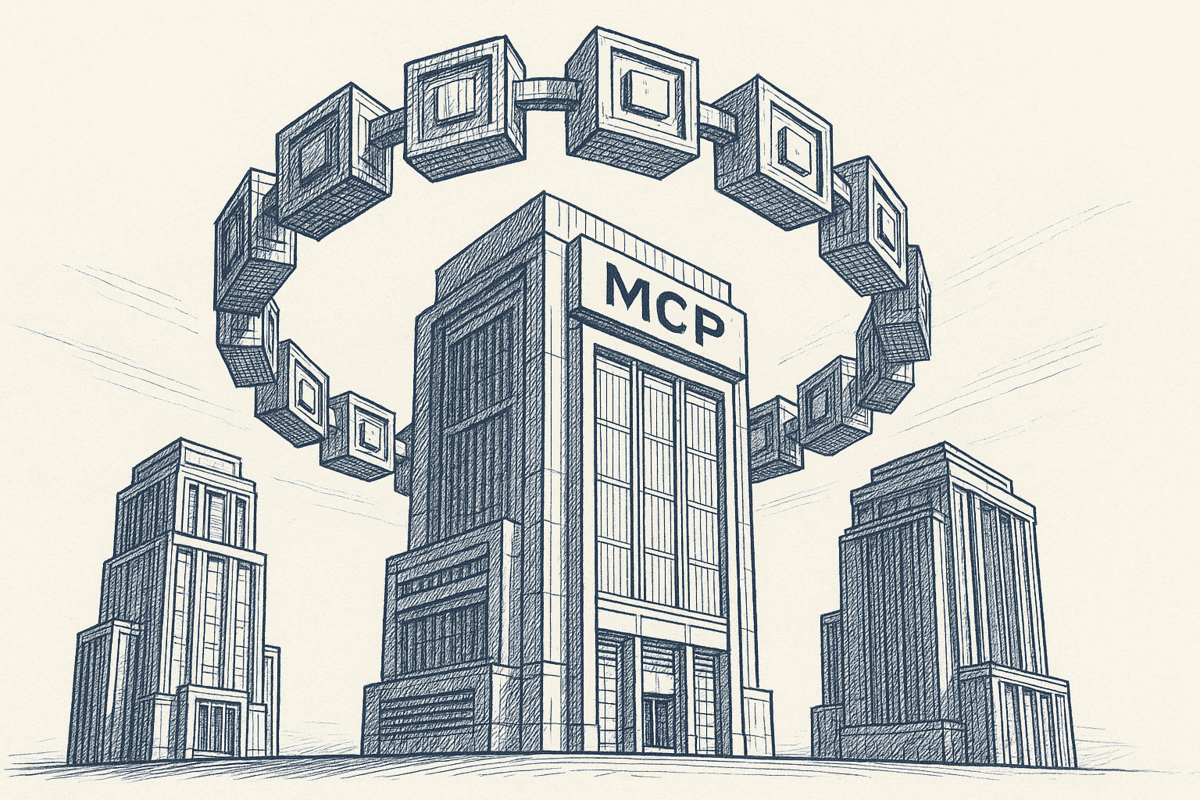
Method 2: Notion MCP (Model Context Protocol)
Notion MCP is a newer option that lets external AI tools connect directly to your Notion workspace. It's built on the open Model Context Protocol standard and gives AI tools read-write access to your pages and databases.
How It Works
MCP acts as a bridge between your Notion workspace and AI clients that support the protocol. Here's the basic flow:
- Install or configure the Notion MCP server (Notion provides an official one)
- Connect it to a compatible AI client (Claude Desktop, Cursor, or ChatGPT Pro)
- Authenticate with your Notion account via OAuth
- The AI client can now search, read, create, and update your Notion pages through natural language
The connection runs locally on your machine, so your data doesn't pass through a third-party service. You grant access to specific pages and can revoke it anytime.
Best For
- Developers and technical users comfortable with MCP configuration
- Claude Desktop or Cursor users who want deep, bidirectional Notion integration
- Teams that need AI to both read from and write to Notion in real time
Trade-Offs
MCP is powerful but comes with significant constraints.
- Requires technical setup: You need to configure an MCP client and server, which is not a point-and-click experience.
- Limited client support: As of early 2026, only Claude Desktop, Cursor, and ChatGPT Pro support MCP. No Copilot, Gemini, or Grok support yet.
- Read-write access is risky: The AI can modify your Notion pages. One bad prompt could overwrite content. This makes some teams nervous.
- Requires paid AI subscriptions: You need Claude Pro or ChatGPT Pro on top of whatever Notion plan you're already paying for.
- No cross-source search: MCP connects to Notion specifically. It doesn't combine Notion content with your website, Google Docs, or other sources in a single query.
MCP is the right choice if you're technical, primarily use Claude or Cursor, and want the AI to actively manage your Notion workspace. For everyone else, the setup overhead and limited client support are hard to justify right now.
Method 3: Context Link (Model-Agnostic Context URL)
Context Link takes a different approach. Instead of connecting one AI tool to Notion, it gives you a personal URL that works with any AI tool. You connect your Notion workspace once, get a link, and paste it into ChatGPT, Claude, Copilot, Gemini, Grok, or anything else that can visit a URL.
How It Works
- Connect your Notion workspace to Context Link (one-time OAuth setup, takes a few minutes)
- Choose which pages, databases, and spaces to include
- Get your personal context link URL (e.g.
yourname.context-link.ai) - Create focused dynamic searches for specific topics (e.g.
/product-docs,/support,/brand-guidelines) - Paste the URL into any AI chat before your prompt
When an AI tool visits your context link, Context Link runs a semantic search across your connected Notion content and returns the most relevant snippets in clean markdown. The AI uses those snippets as context for its response.
For example, you might paste yourname.context-link.ai/product-roadmap into ChatGPT and ask: "Based on our roadmap, what features should we highlight in the Q2 launch announcement?" ChatGPT visits the link, gets the relevant roadmap snippets, and drafts the announcement grounded in your actual plans.
Best For
- Teams using multiple AI tools (not locked into one model)
- Non-technical users (marketers, founders, support leads) who want AI to know their Notion content without coding
- Cross-source workflows where you need Notion content alongside your website, Google Docs, Google Drive, or OneDrive
- Anyone who wants their Notion knowledge available in AI without giving AI write access to their workspace
Trade-Offs
Context Link is read-only for your original sources, which is both a feature and a limitation. The bigger story is what you get on top: a virtual version of your business that any AI tool can ask, and that you can observe through Lenses on the dashboard.
- Can't write back to Notion: If you need AI to create or edit Notion pages directly, this isn't the tool. Use Method 1 or 2 for that.
- Requires Context Link account: There's a subscription, though you don't need a Notion Business plan to use it.
- Returns snippets, not full workspace access: Context Link returns the most relevant chunks, not your entire workspace. This is intentional (and usually better for AI accuracy), but it means the AI won't see everything.
The trade-off is clear: Context Link gives you breadth (every AI tool, plus analytical Lenses like Positioning, Competitors, Business Activity, and Customer Support Pulse) at the expense of direct Notion editing. For most daily workflows, drafting content, answering questions, researching your own docs, and seeing what's true right now, what changed, and what needs attention, that's exactly the right trade. Lenses combine your connected sources with recurring AI deep research, and Suggested Actions turn each Lens into concrete next moves you can copy or open in any AI tool. For quick factual lookups, Pro users can also invoke the Ask Question skill (e.g. /ask-question what's our refund policy?) to get a single grounded paragraph with numbered citations instead of raw context snippets.
If you want the full step-by-step for connecting Notion to specific AI tools, see our guides on how to connect Notion to ChatGPT and giving Claude access to your Notion workspace.
Method 4: Third-Party Agent Builders (n8n, Stack AI, Zapier)
If you want fully custom automation or a traditional RAG (Retrieval-Augmented Generation) pipeline, third-party platforms let you connect to Notion via API and build whatever you need.
How It Works
Platforms like n8n, Stack AI, Zapier, and Make.com offer Notion integrations that let you:
- Connect to Notion databases and pages via the Notion API
- Build workflows that trigger when Notion content changes
- Create custom RAG pipelines that index Notion content into a vector database
- Combine Notion with other data sources in a single retrieval system
- Automate tasks like "when a new page is added to this database, summarise it and post to Slack"
Each platform has its own interface, pricing, and learning curve. n8n is open-source and developer-friendly. Zapier is no-code but less flexible. Stack AI focuses specifically on AI knowledge base agents.
Best For
- Automation-heavy teams who need Notion as one piece of a larger workflow
- Developers who want full control over their retrieval pipeline
- Specific use cases like "auto-summarise new meeting notes" or "trigger an AI report when a database updates"
Trade-Offs
- Technical setup required: Even "no-code" platforms have a learning curve, and most Notion AI agent setups require some API configuration.
- Another platform to maintain: Each builder is its own ecosystem with its own pricing, updates, and potential breakages.
- Ongoing maintenance: API connections drift, schemas change, and someone needs to keep the pipeline working.
- Pricing varies wildly: Free tiers are limited. Production usage on platforms like Zapier or Stack AI can run $20-$100+/month.
This is the right choice if you're building something very specific that the other three methods can't handle. For most people who just want AI to know their Notion content, it's overkill.
Which Method Should You Choose?
Here's the comparison at a glance:
| Feature | Notion Agent | Notion MCP | Context Link | Third-Party Builders |
|---|---|---|---|---|
| Works with ChatGPT | No | Yes (Pro only) | Yes | Varies |
| Works with Claude | No | Yes | Yes | Varies |
| Works with Copilot/Gemini/Grok | No | No | Yes | Varies |
| Technical setup | None | Medium | Low | Medium-High |
| Write access to Notion | Yes | Yes | No | Yes |
| Live business Lenses + deep research | No | No | Yes | Build your own |
| Requires Notion Business plan | Yes ($20/user/mo) | No | No | No |
| Cross-source (+ website, Google Docs, OneDrive) | Limited | No | Yes | Some |
| Best for | In-Notion workflows | Claude/Cursor power users | Multi-tool teams | Custom automation |

Photo by GuerrillaBuzz on Unsplash
Quick Decision Guide
"I only work in Notion and want AI to do things inside my workspace."
Go with Method 1 (Notion Agent). It's the simplest path if you're already on the Business plan.
"I use Claude Desktop or Cursor and want deep, bidirectional Notion access."
Go with Method 2 (Notion MCP). It's technical but powerful for supported clients.
"I use ChatGPT, Claude, Copilot, and other tools, and I want my Notion content available in all of them."
Go with Method 3 (Context Link). One setup, every AI tool, no lock-in.
"I need custom automation pipelines triggered by Notion changes."
Go with Method 4 (Third-Party Builders). Build exactly what you need with n8n, Zapier, or Stack AI.
Most people reading this article will get the most value from Method 1 or Method 3, depending on whether they work exclusively inside Notion or across multiple AI tools.
Example: Setting Up a Notion-Powered AI Agent with Context Link
Here's what the setup looks like in practice. This takes about 10 minutes.
Step 1: Connect Your Notion Workspace
Sign up at context-link.ai, then click "Add Source" and select Notion. Authenticate with your Notion account and choose which pages and databases to include. You don't have to connect everything -- start with a focused set like your product docs or marketing playbooks.
Step 2: Create a Dynamic Search
Create a dynamic search for a specific topic. For example, /product-docs scopes searches to just your product documentation, while /brand scopes to brand guidelines and voice docs. This keeps AI responses focused and relevant.
Step 3: Paste Your Context Link into Any AI Tool
Copy your context link (e.g. yourname.context-link.ai/product-docs) and paste it into ChatGPT, Claude, or whichever tool you're using. Add your question after it:
Please visit this link for context: yourname.context-link.ai/product-docs

Based on our product documentation, draft a support reply explaining how the export feature works.
Step 4: Test with a Real Question
Ask something only your Notion docs would know. If the AI gives you a specific, accurate answer grounded in your content (not a generic response), the connection is working. If the answer is vague, try creating a more focused dynamic search or adding more relevant Notion pages to your sources.

Photo by Claudio Schwarz on Unsplash
Tips for Getting Better Results from Your Notion AI Agent
Whichever method you choose, these practices help:
- Structure your Notion content well. Clear headings, focused pages, and consistent formatting help both Notion's native agent and external search tools find the right content.
- Create focused scopes. Whether it's Notion Agent's workspace search, MCP's page permissions, or Context Link's dynamic searches, narrower scope usually means better results. An agent searching 50 relevant pages outperforms one searching 5,000 pages of mixed content.
- Combine context with instructions. Pair your Notion content with clear prompts or custom instructions. The content provides what AI should know; the instructions tell it how to use that knowledge.
- Keep content current. Stale docs produce stale answers. Notion Agent and MCP reflect live workspace changes. Context Link re-syncs periodically. Third-party builders need manual re-indexing in some cases.
- Layer multiple sources when possible. Your Notion workspace is one piece. If you also have a website, Google Docs, OneDrive, or a help center, combining them gives AI a more complete picture. Context Link supports this natively; for other methods, you'd need separate integrations.
For more on designing what AI knows before it answers, read our guide on context engineering. If you're looking at a broader strategy beyond Notion, see our guide on building an AI knowledge base from all your existing sources.
Conclusion
You have four real options to build an AI agent from your Notion workspace:
- Notion's built-in agent: Best for in-Notion workflows, requires Business plan
- Notion MCP: Best for technical users on Claude/Cursor, bidirectional access
- Context Link: Best for multi-tool teams who want a virtual version of the business across every AI app, with Lenses and recurring AI deep research
- Third-party builders: Best for custom automation pipelines
There's no single "right" answer. The choice depends on where you use AI, how technical your team is, and whether you need AI to read your Notion content, write to it, or both.
The key insight: your Notion workspace doesn't have to be a walled garden. You can build an AI agent from your Notion docs that works across every AI tool you use, without locking into one platform.
Ready to try it? Connect your Notion workspace to Context Link, create a dynamic search, and test your first context link in under 10 minutes. One setup, every AI tool.